Developer Offer
Try ImaginePro API with 50 Free Credits
Build and ship AI-powered visuals with Midjourney, Flux, and more — free credits refresh every month.
How to Quickly Delete Your ChatGPT History

By default, ChatGPT diligently saves every conversation you have, creating a comprehensive, and sometimes massive, history of your interactions. While this can be a handy reference, there are several compelling reasons to perform a bulk deletion. Whether you're concerned about privacy, want to declutter your sidebar, or simply need a fresh start, OpenAI provides a simple method to wipe the slate clean.
The process to delete your entire chat history takes less than a minute and removes all conversations from your account permanently. Here’s a look at why you should consider it and how to do it on any device.
Why You Should Consider Deleting Your ChatGPT History
There are a few key benefits to regularly clearing out your conversation history:
- Enhanced Privacy: This is the most significant advantage. ChatGPT stores every prompt and response, which could include sensitive details about your business, personal life, or creative projects. Regular purges prevent this information from accumulating in your account.
- Improved Performance: A long and extensive chat history can sometimes lead to a less responsive interface. Just like clearing your browser cache can speed things up, clearing your ChatGPT history can lead to a snappier user experience.
- Better Response Quality: Starting fresh can also improve the quality of ChatGPT's responses. The AI can sometimes fall into patterns based on previous interactions, and clearing your history helps ensure you aren't getting stuck in a conversational rut.
How to Delete All ChatGPT Conversations on Desktop
Here’s the step-by-step process for clearing your history in a web browser.
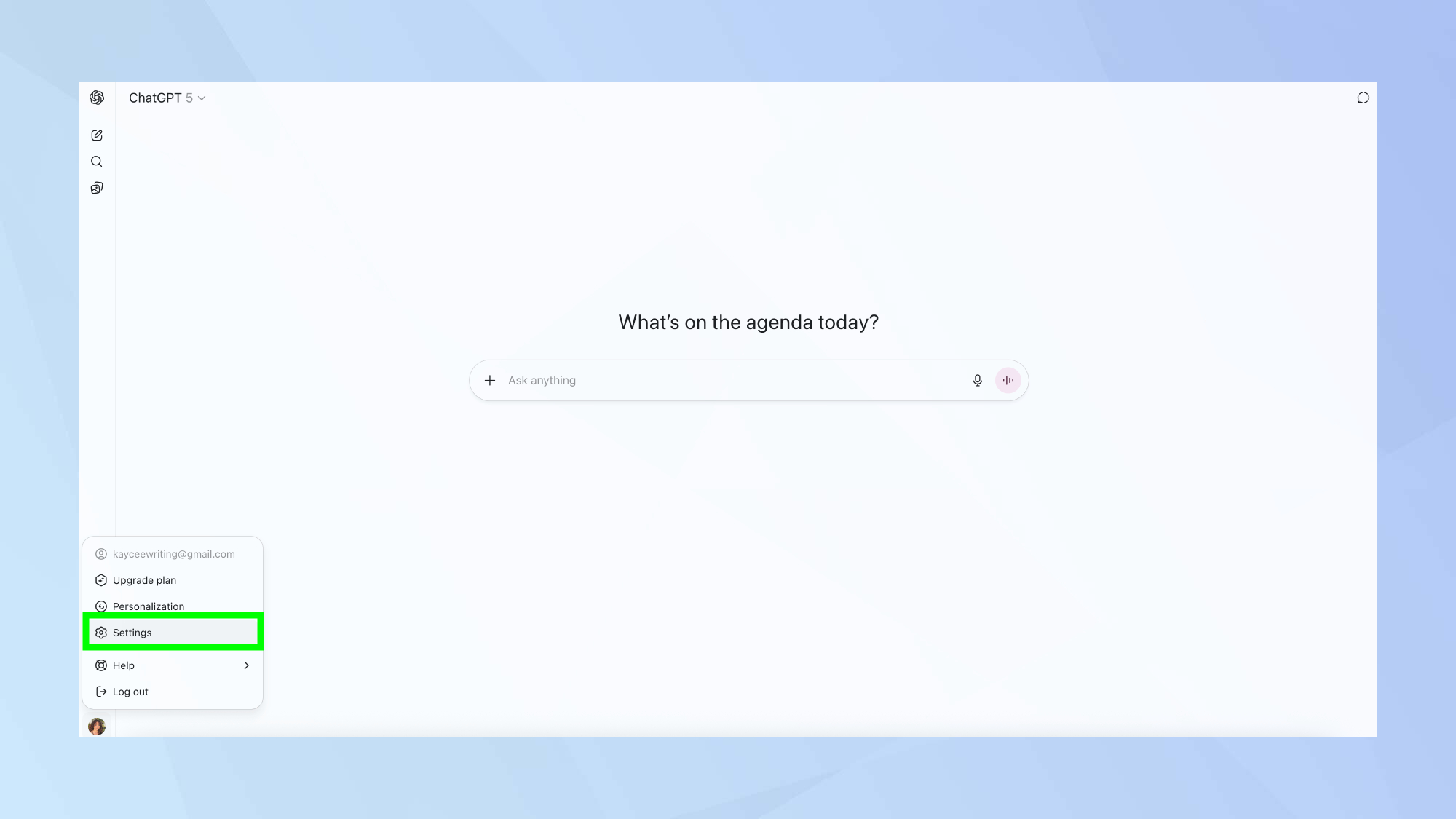
1. Access ChatGPT Settings
First, log in to the ChatGPT website. In the bottom left corner, you will see your profile icon and name. Click on your name and select Settings from the menu that appears.
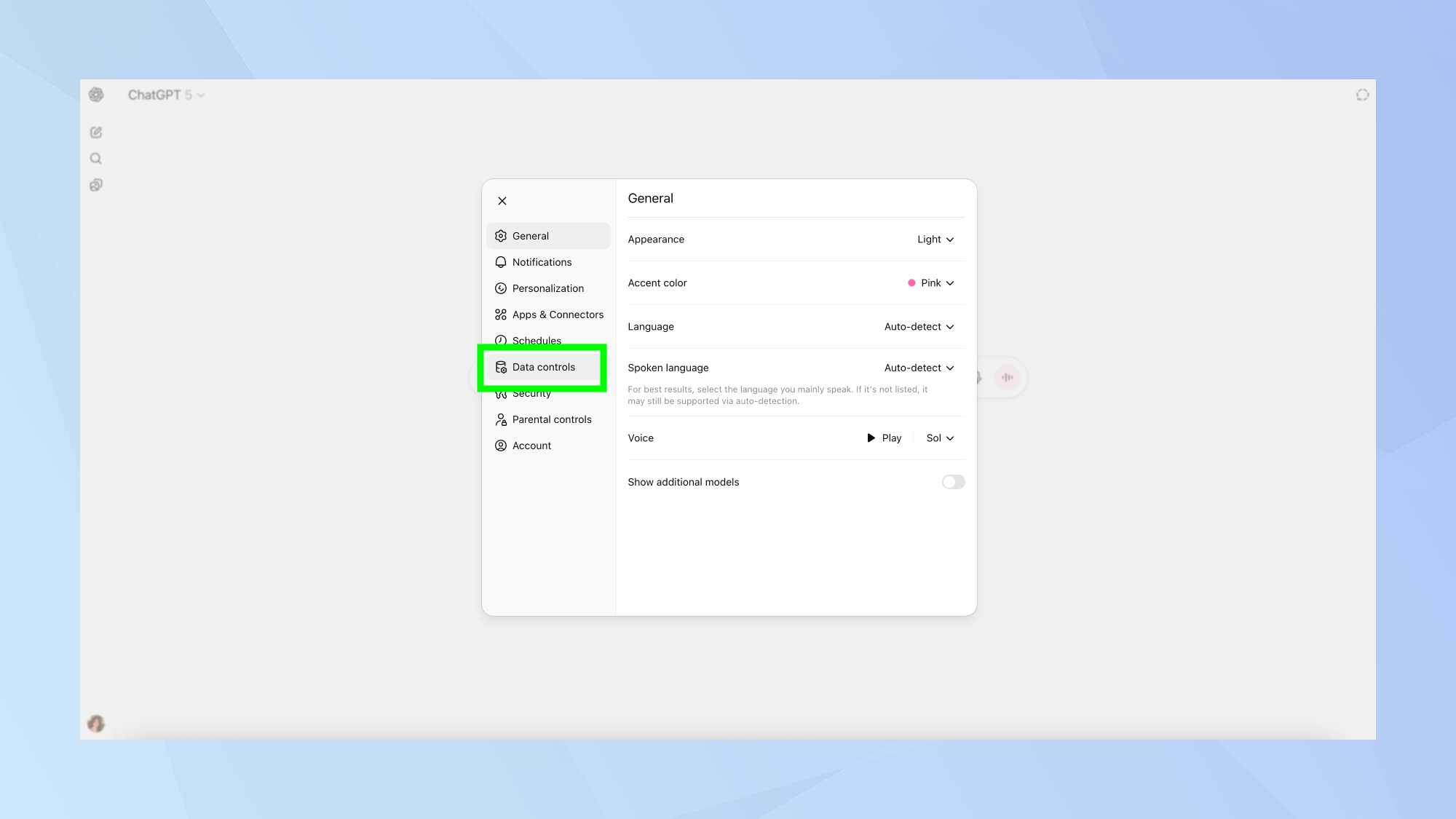
2. Navigate to Data Controls
Within the Settings menu, look through the options on the left and select Data controls.
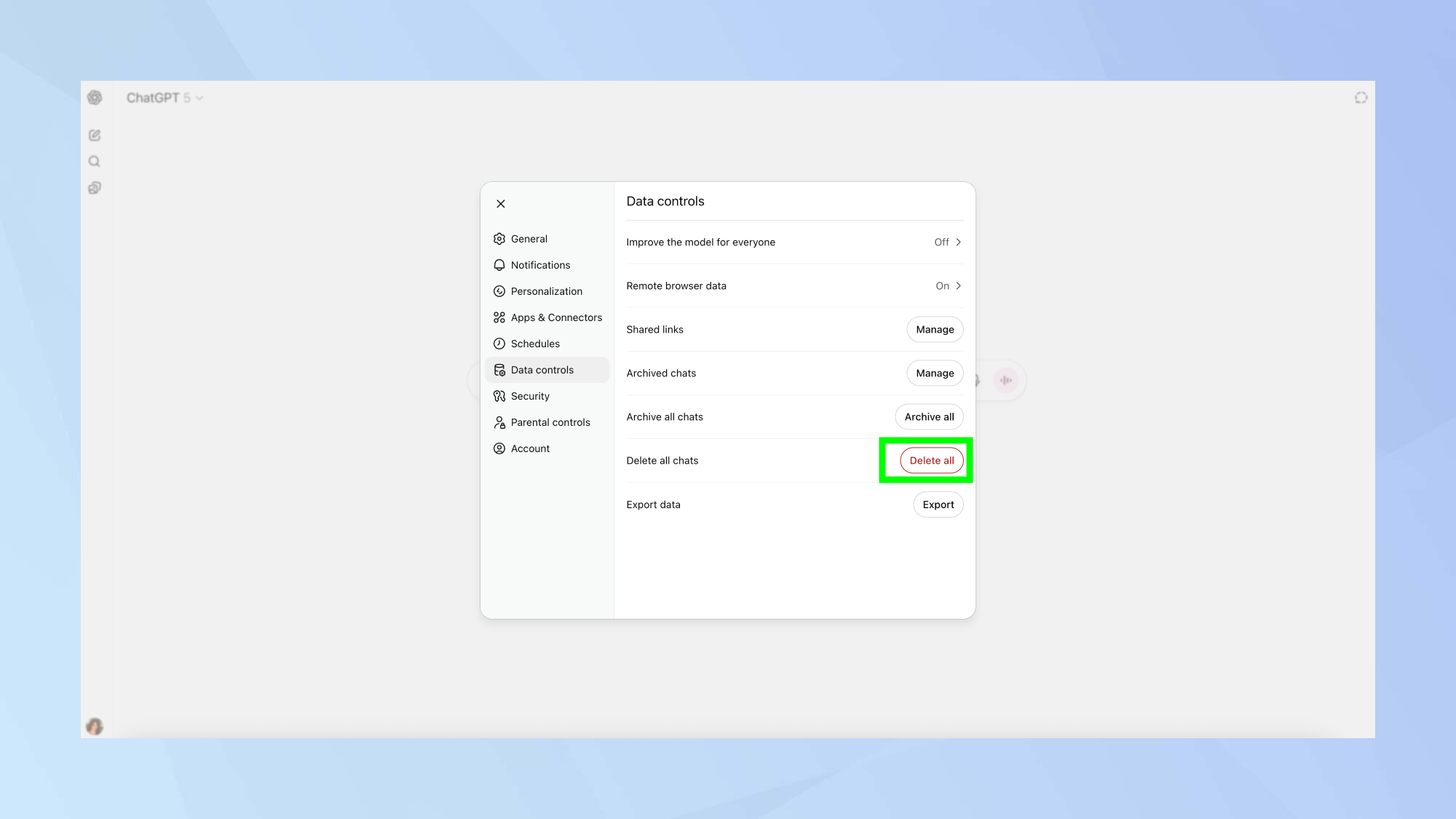
3. Delete All Chats
In the Data controls section, you will see an option labeled Chat history and training. Click the Delete button next to it.
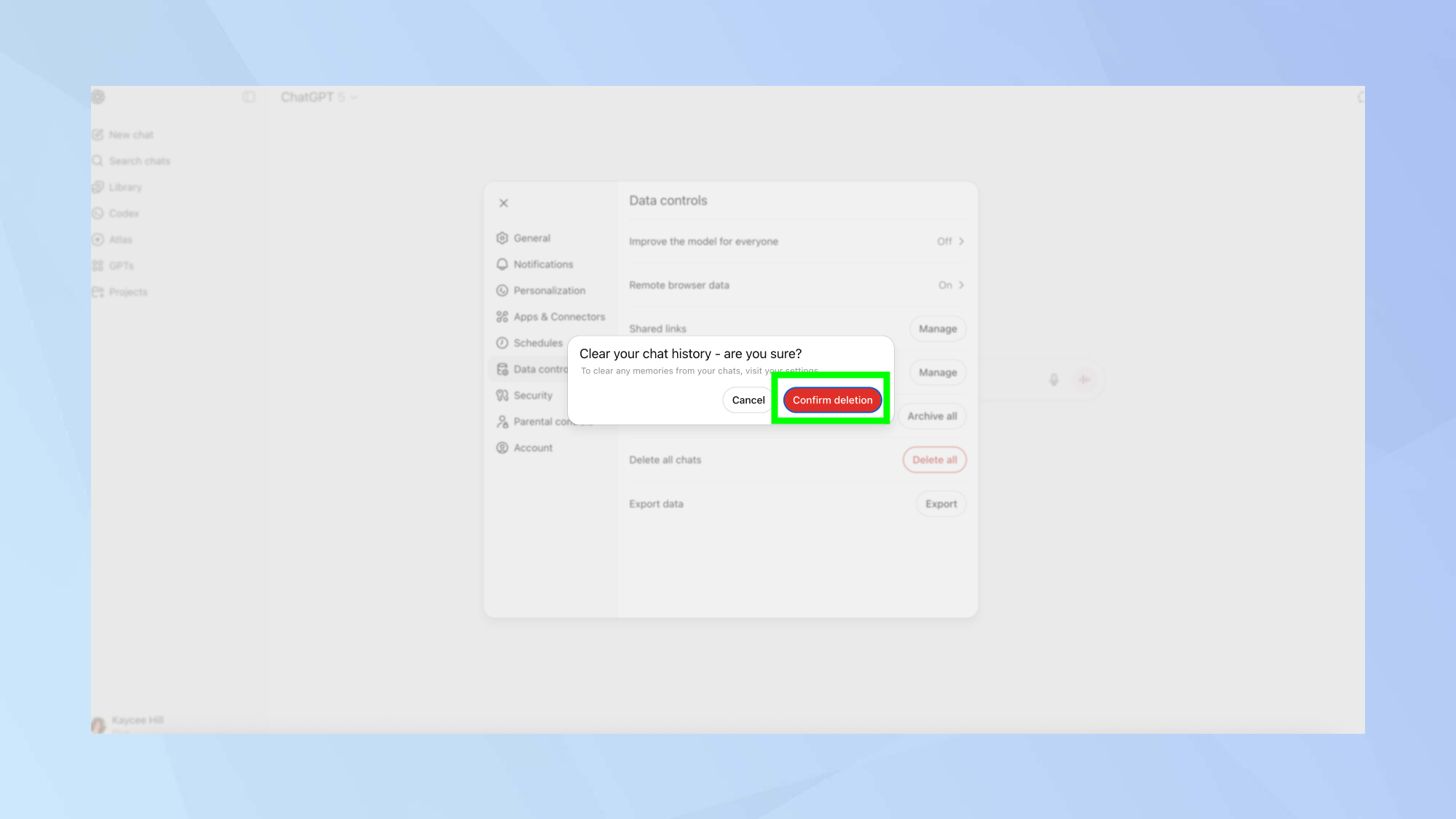
4. Confirm Your Decision
A confirmation window will pop up to ensure you want to proceed. This is an important step because this action is irreversible—once you confirm, your conversations cannot be recovered. To continue, click Confirm deletion.
How to Delete All ChatGPT Conversations on Mobile
The process is just as simple on the ChatGPT mobile app for iPhone and Android.
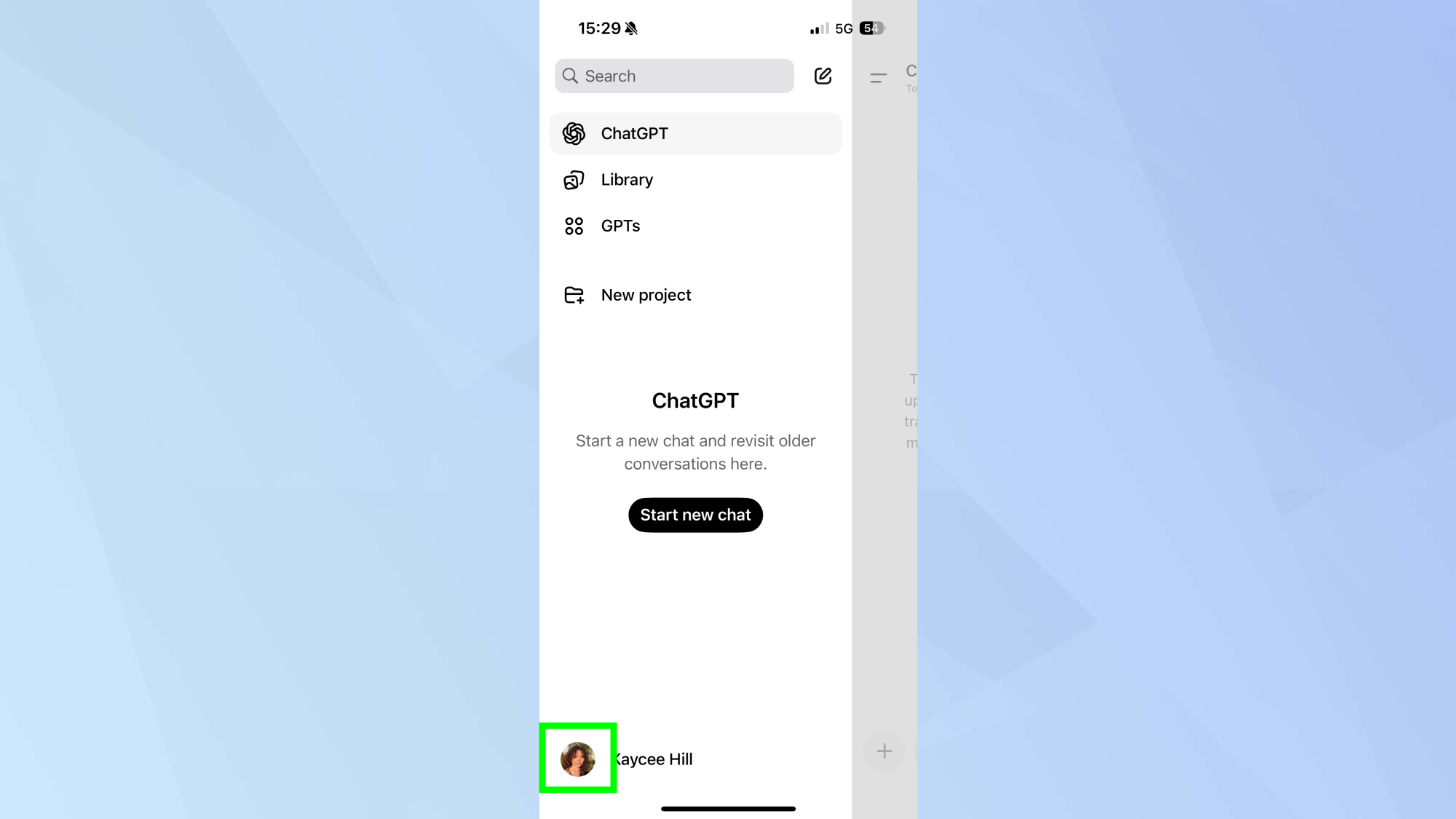
1. Open App Settings
Launch the ChatGPT app on your phone. Tap the two lines in the top-left corner, and then tap on your name at the bottom of the sidebar to open the settings menu.
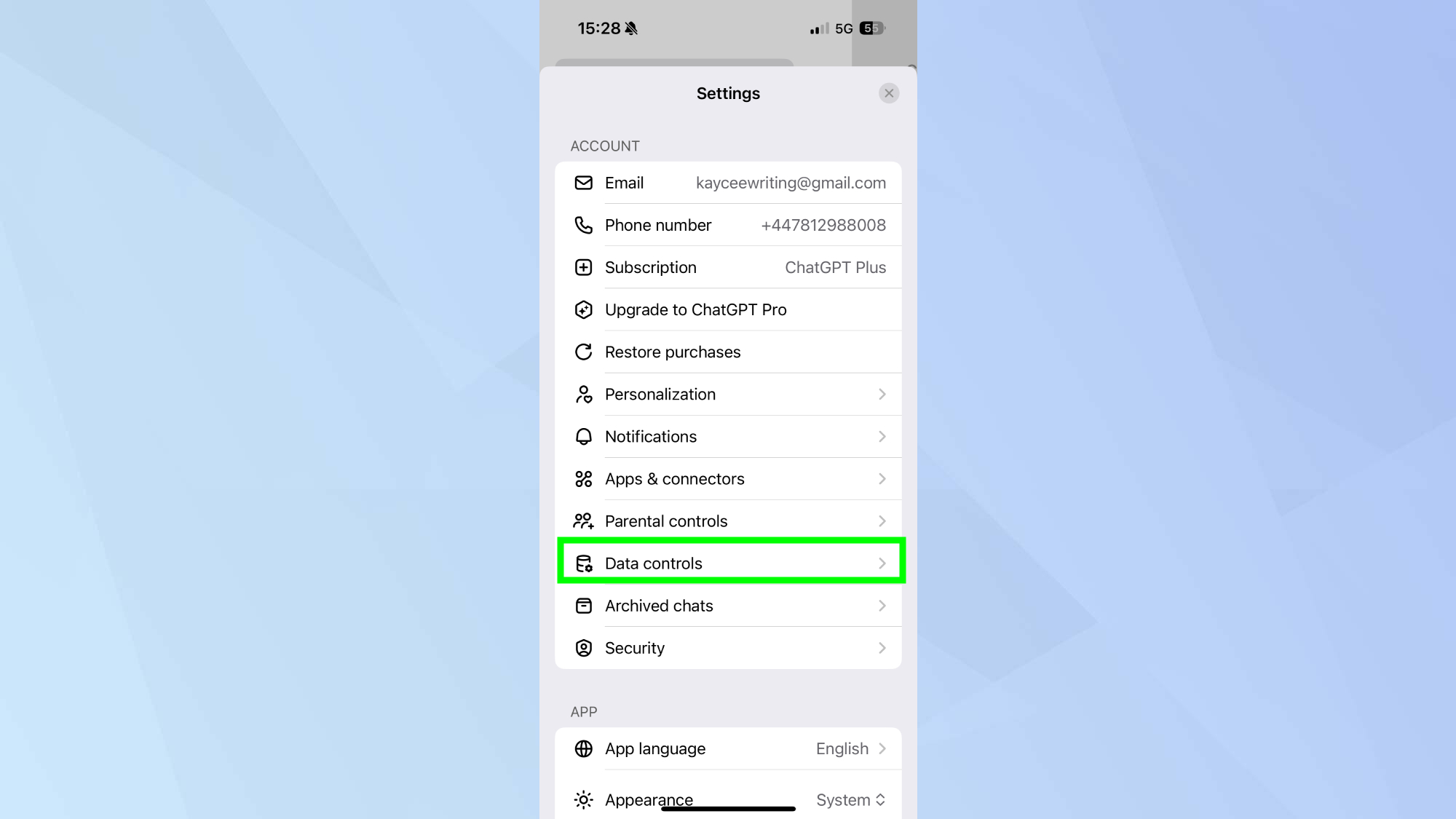
2. Go to Data Controls
In the Settings menu, tap on Data Controls. This section allows you to manage all aspects of your chat history and privacy preferences.
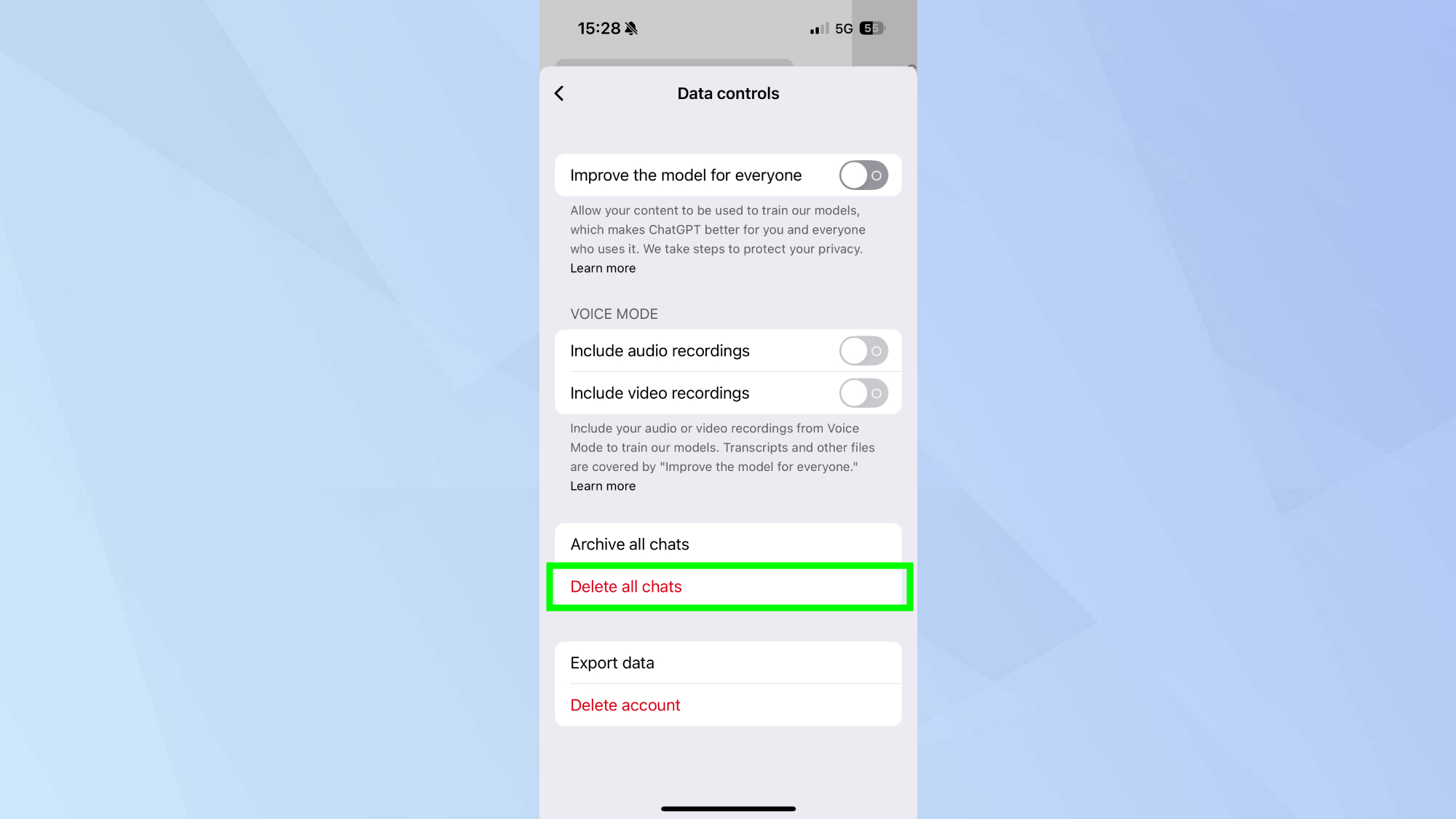
3. Select Delete All Chats
Under the Chat History section, tap the option to Clear chat history.
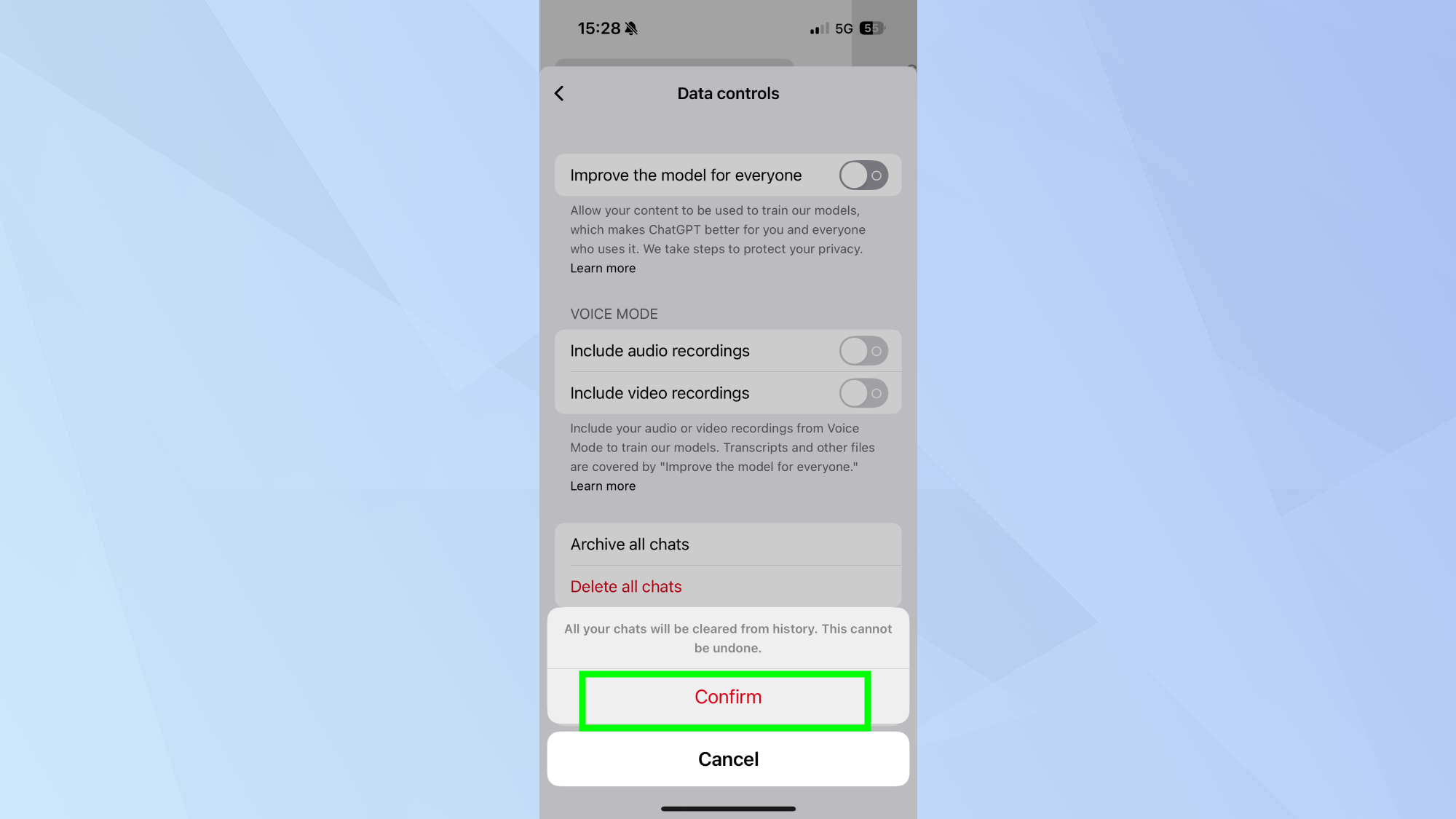
4. Confirm Your Choice
A final confirmation prompt will appear. Tap Clear to permanently delete all your saved chats from your account.
More AI Tips and Tricks
If you're looking to get more out of your AI interactions, check out these helpful guides:
Compare Plans & Pricing
Find the plan that matches your workload and unlock full access to ImaginePro.
| Plan | Price | Highlights |
|---|---|---|
| Standard | $8 / month |
|
| Premium | $20 / month |
|
Need custom terms? Talk to us to tailor credits, rate limits, or deployment options.
View All Pricing Details