Developer Offer
Try ImaginePro API with 50 Free Credits
Build and ship AI-powered visuals with Midjourney, Flux, and more — free credits refresh every month.
Open Sourcing Comfy MCP on Local
Open Sourcing Comfy MCP on Local

Understanding ComfyUI MCP and Local AI Image Generation

In the rapidly shifting landscape of AI image generation, one of the most powerful yet underappreciated developments is the emergence of local-first tooling. If you've been exploring self-hosted image pipelines, you've likely heard of ComfyUI—a node-based interface for generating images with diffusion models. But there's a quieter revolution happening at the protocol level: ComfyUI MCP, a Model Context Protocol server that connects large language models to your local ComfyUI instance. This article is a deep dive into how ComfyUI MCP works, why local AI image generation is becoming a necessity, and how you can install, automate, and optimize your own setup.
What Is ComfyUI MCP?
MCP, or Model Context Protocol, is an open standard introduced by Anthropic to give AI assistants and agents a unified way to access external tools and data. ComfyUI MCP is an MCP server implementation that bridges the gap between an LLM and ComfyUI. Essentially, it exposes ComfyUI's workflow capabilities as a set of MCP tools that an LLM can call natively. Instead of manually designing a node graph in the browser, you can ask an assistant to "generate an image of a cyberpunk cat with neon lighting," and the LLM will invoke the right ComfyUI MCP tool to create that image on your local machine.
The key distinction here: ComfyUI itself is not an MCP client. It's a backend for running diffusion models. ComfyUI MCP sits between an MCP-capable client (like Claude Desktop, a custom Python agent, or a home-automation script) and ComfyUI's HTTP API. This server translates MCP tool calls into ComfyUI API requests and returned image outputs back into structured responses.
Why Local AI Image Generation Matters
Why go through the trouble of installing and maintaining a local pipeline when cloud tools are just a subscription away? For many developers and artists, the answer comes down to control. With local AI image generation, your prompts and generated images never leave your hardware. There is no data retention policy to worry about, no hidden review of your creative work, and no dependency on a third-party API that could change pricing or disappear overnight.
Privacy is the most obvious advantage. When you're generating reference art for a client project, conceptual prototypes for an upcoming product, or personal creative explorations, you retain full ownership of that data. Offline capability matters too. Once the model weights and dependencies are downloaded, a local pipeline works in an isolated environment—ideal for air-gapped networks, field work, or simply avoiding the latency of a round trip to a server.
Creative control is the third pillar. Local workflows allow you to manipulate every parameter: samplers, CFG scales, custom VAEs, LoRA stacks, and multi-stage pipelines. Cloud services give you a limited set of knobs; local ComfyUI gives you the entire machinery. This is also where ComfyUI MCP becomes valuable, because it lets an LLM make those advanced adjustments via natural language, turning a node graph into a programmable, accessible API.
How ComfyUI MCP Fits into Modern AI Workflows
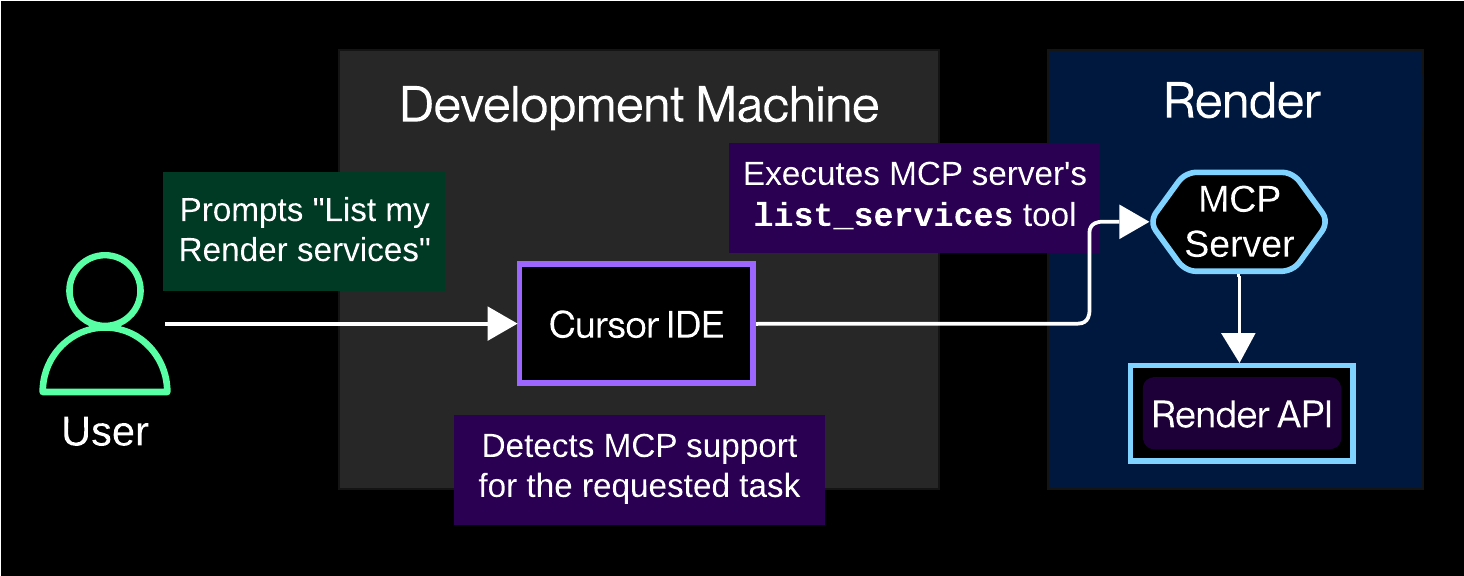
MCP standardizes how AI agents connect to tools, much like how USB standardized peripherals. In the context of AI image generation, it enables seamless automation across different layers. For example, an agent can be responsible for parsing user intent, retrieving reference images, and then calling ComfyUI MCP to execute a specific workflow. The agent can also chain multiple generations, tweak prompts based on output metadata, and even feed results back into another MCP-enabled service.
What makes this compelling is the degree to which it removes specialized knowledge from the loop. You can build reusable workflow templates and expose them as simple MCP tools. An LLM doesn't need to understand the difference between a KSampler and a CheckpointLoader—it only needs to know that a tool named generate_text_to_image exists with parameters like prompt, batch_size, and width. ComfyUI MCP becomes the translation layer that turns a user's high-level instruction into a precise sequence of node calls.
Why Open Sourcing Comfy MCP Expands Open Source AI Image Tools
The open source nature of the Comfy MCP implementation is not just a licensing detail; it's a foundational choice with wide-reaching consequences for the ecosystem. When the server code is open, anyone can inspect exactly how tool definitions are mapped to ComfyUI API endpoints, verify that no hidden telemetry or remote calls are made, and propose changes that benefit the entire community.
The Value of Transparency in AI Tooling

Trust is a rare commodity in AI tooling. With a proprietary integration, you have to take the vendor's word that your prompts aren't being logged or shared. Open source offers auditability: you (or the community) can read the code, check for suspicious network calls, and see the complete data flow. This transparency accelerates adoption, especially in regulated industries where data governance is paramount.
Community-Driven Workflow Automation

An open integration layer invites contributions. Developers have already written custom nodes, added support for new samplers, and built job-queue wrappers around ComfyUI MCP. Artists share workflow JSON files that leverage these MCP tools to create controlled animation sequences, batch style-transfer experiments, and parametric design variations. This collaborative loop means every improvement is shared, and the ecosystem evolves faster than any single vendor could manage.
How Open Source Lowers the Barrier to Entry
For newcomers, open source lowers the cost of experimentation. There are no license fees, no trial periods, and no vendor lock-in. You can fork the project, adapt it to a weird hardware configuration, or use it as a foundation for a commercial product (with appropriate license compliance). This ensures that open source AI image tools remain accessible to hobbyists who don't want to pay for cloud credits while they're learning.
Prerequisites for Installing ComfyUI MCP
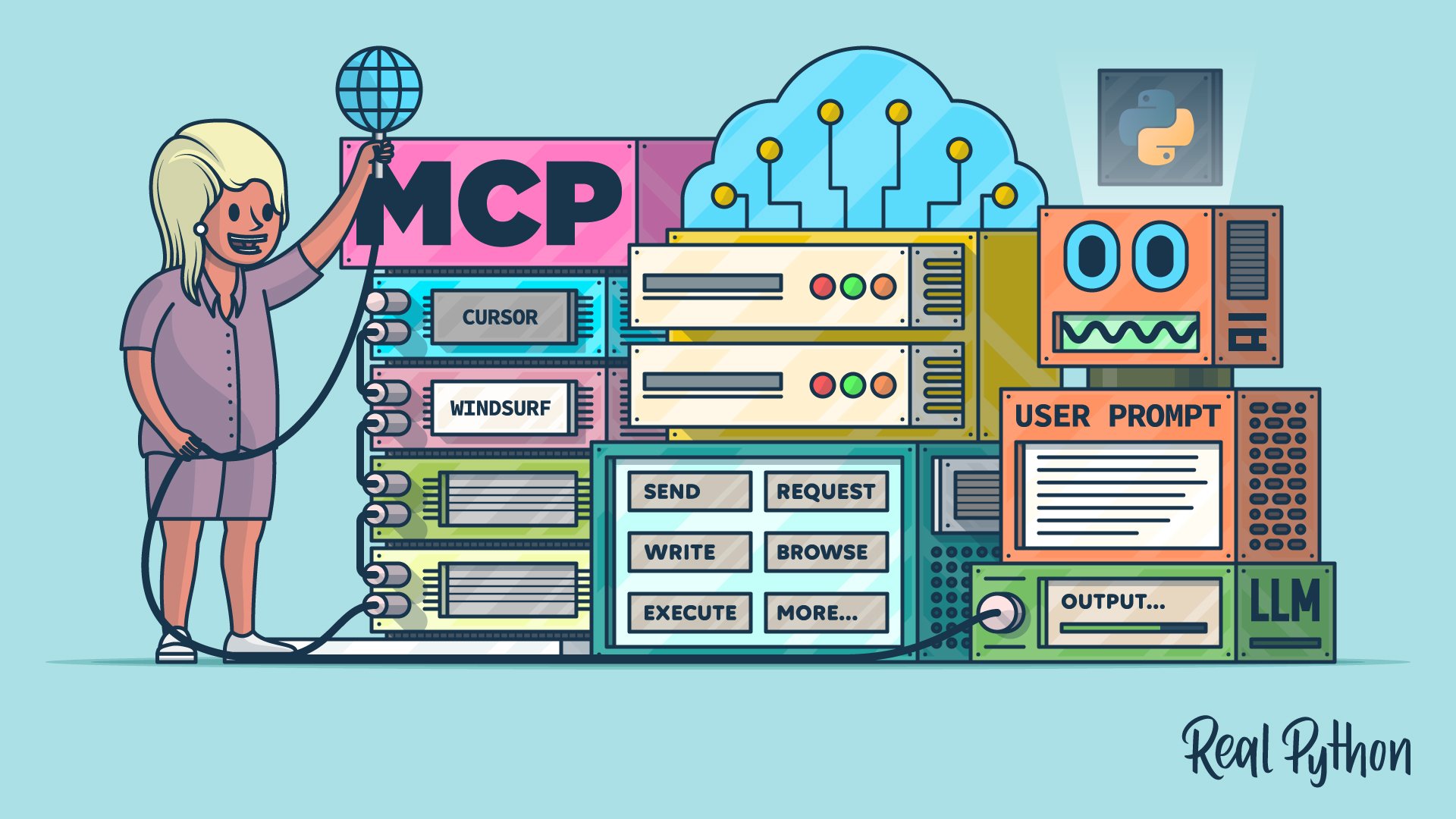
Before diving into installation, let's be honest about the hardware and software landscape. ComfyUI MCP is not an image generation engine—it's a relay server. The heavy lifting is still done by ComfyUI and the diffusion models you run locally. You need a system that can handle both.
Hardware and Software Requirements for AI Image Generation Local
A recommended baseline for comfortable SDXL generation is an NVIDIA GPU with at least 8GB VRAM (12GB or more for larger models). For newer models like SDXL Turbo or Lightning, 8GB is workable, but for stable diffusion 3.5 or Flux, you'll want 16GB to avoid painfully slow offloading. RAM should be 32GB or more, and you'll need at least 30GB of free disk space for model weights plus an additional chunk for swapping and intermediate files.
On the software side, the primary platform is Linux or Windows with a Python 3.10–3.12 environment. CUDA and cuDNN should be installed if you're on NVIDIA. On macOS, you can use the MPS backend, but performance will be limited compared to a dedicated GPU. There's also a CPU-only mode if you're just testing workflows, but expect generation times in minutes rather than seconds.
Installing ComfyUI and Setting Up Python Environment
If you don't already have ComfyUI installed, start with the official GitHub repo. The installation process typically looks like this:
git clone https://github.com/comfyanonymous/ComfyUI.git
cd ComfyUI
python -m venv venv
source venv/bin/activate  # on Windows: venv\Scripts\activate
pip install torch torchvision torchaudio --index-url https://download.pytorch.org/whl/cu121
pip install -r requirements.txt
This gives you a working ComfyUI. Run it with python main.py and navigate to http://127.0.0.1:8188. That address is important—it's the default endpoint your MCP server will talk to.
Preparing Model Directories and Dependencies

ComfyUI model organization follows a simple structure: models/checkpoints/, models/loras/, models/vae/, and models/controlnet/. Place your downloaded models in the appropriate directories. For ComfyUI MCP to work seamlessly, establish a consistent naming convention. I use paths like models/checkpoints/sdxl_base_1.0.safetensors and reference that in all MCP tool calls. If you also use custom nodes, install them before testing, because ComfyUI MCP can call workflows that rely on those nodes.
Step-by-Step Guide: Installing ComfyUI MCP Locally
Once ComfyUI is running, installing the MCP server is straightforward. The project is distributed as a Python package and also available as standalone code.
Cloning the Comfy MCP Open Source Repository
First, clone the Comfy MCP repository:
git clone https://github.com/Comfy-Org/comfyui-mcp.git
cd comfyui-mcp
pip install -e .
The repository contains the MCP server implementation, example config files, and a collection of tool definitions. Review the project structure to understand where tools are defined. Most are in an mcp_tools directory or similar. Verify the latest release tag if you want a stable version; the main branch may contain unreleased features.
Configuring the MCP Server with Your Local ComfyUI Instance
The server needs to know where to find ComfyUI. Set environment variables in your shell or a .env file:
export COMFYUI_URL="http://127.0.0.1:8188"
export COMFYUI_MCP_HTTP_PORT="8188"
The MCP server uses ComfyUI's HTTP API, so ensure CORS and API access are enabled. If ComfyUI is running on a remote machine, set the URL to that machine's address and confirm the port is reachable.
Testing the Connection with Sample Prompts
With the server configured, you can launch it in development mode. Many implementations include a simple MCP client for testing:
python -m comfyui_mcp --transport stdio
Then send a minimal prompt like "a red apple on a white background". If the setup works, you'll see tool calls appear in the console, and the generated image will be saved to ComfyUI's output folder. You can also test using an MCP inspector tool from the Claude or Python ecosystem.
Automating ComfyUI Workflow Automation with MCP
The real power of ComfyUI MCP shows up when you start automating generation workflows. Instead of clicking through node graphs, you define reusable workflows and trigger them programmatically.
Creating Reusable Workflows for Text-to-Image Generation
Start by designing a workflow in ComfyUI's UI that fits your typical generation style. Then export it as JSON. That JSON is a consistent workflow configuration. You can register it as a custom MCP tool. For instance, a tool named create_product_shot might accept product_name, background_color, and style_override, and load a pre-defined workflow graph with those inputs injected into the prompt node and KSampler.
Triggering Local AI Image Generation from an LLM or Agent
Once registered, an LLM can invoke the tool naturally. Imagine a prompt like "Create three product shots for a new coffee mug, one in blue, one in red, one in white." The LLM extracts parameters, calls create_product_shot three times, and returns the output image paths. This is local AI image generation orchestrated entirely by natural language—no manual node manipulation.
Scheduling and Batch Processing with ComfyUI MCP
Since the MCP server exposes standard JSON-RPC endpoints, you can build a scheduler that calls the server at intervals. Batch processing is a matter of looping over a list of prompt configurations and sending each one to MCP. Many users combine ComfyUI MCP with a message queue (like Redis) to parallelize workloads. However, note that ComfyUI is generally single-instance for a given GPU; parallel calls can lead to VRAM exhaustion. For larger batches, consider queuing requests via ComfyUI's built-in job queue.
Real-World Implementation and Lessons from Production
Let's walk through an actual pipeline that I've built and run in a production-like setting, including the rough edges I learned along the way.
A Sample End-to-End Local Generation Pipeline
The pipeline was designed for an internal design team. It works like this: a user enters a text description in a Slack bot. A Python script (backed by an LLM) extracts the intended subject, style, and aspect ratio. It then calls a ComfyUI MCP tool named generate_sd15_image with those parameters. The MCP server receives the tool call, loads the appropriate workflow JSON, injects the prompt, and submits an HTTP request to ComfyUI at http://127.0.0.1:8188/prompt. ComfyUI processes the workflow, saves the output, and returns an image path. The script then posts the image back into Slack.
The entire round trip takes about 15 seconds for a 512x512 SD1.5 image on a mid-tier GPU. The benefit was that designers never had to learn ComfyUI—they just interacted with Slack.
Common Automation Patterns and Gotchas
I quickly learned that the most brittle part of the pipeline was prompt formatting. LLMs often include extra words like "image:" or "A detailed photo of..." that can confuse the negative prompt node. I added a cleanup function to strip unwanted prefixes and enforce a fixed structure. Another gotcha: ComfyUI's API returns a prompt_id immediately, but the image isn't ready until the workflow completes. You must poll the history endpoint with that ID to know when the image exists. Implementing a retry and timeout mechanism is essential.
A third lesson was about error handling. If the model fails to load due to VRAM pressure, the MCP server receives a 500 error from ComfyUI, but the LLM may not parse that correctly. I wrapped the tool to raise a clear exception: "VRAM limit exceeded. Try reducing batch size." This gave the LLM actionable information to adjust its approach.
Hybrid Workflow: Using Cloud Tools Like Imagine Pro for Quick Iteration
Even with a solid local setup, there are times when local generation isn't the best tool for the job. For quick visual brainstorming, especially when I'm away from my GPU machine, I rely on cloud-based tools. Imagine Pro is an AI-powered image generation tool that delivers high-resolution results in seconds and offers a free trial. It's ideal when you need a fast reference image without running a local environment. The workflow I use: local ComfyUI MCP for final asset generation, data-sensitive tasks, and iterative experimentation; Imagine Pro for quick concept mockups and for times when my laptop's integrated GPU just won't cut it. The complementary relationship gives you both the privacy of local processing and the convenience of a zero-setup cloud fallback.
Advanced Technical Deep Dive: How ComfyUI MCP Works Under the Hood
Now let's peel back the layers and look at the actual mechanics. MCP uses JSON-RPC 2.0 for messages. Tool calls are method requests like tools/call with a name and arguments object.
Mapping MCP Standards to ComfyUI Nodes
When the MCP server receives a tools/call for a registered tool, it translates it into a ComfyUI API workflow. The server maintains a mapping that looks like:
{
  "name": "generate_text_to_image",
  "arguments": {
    "prompt": "a cat",
    "steps": 20
  }
}
This gets converted into a workflow graph where the prompt becomes a CLIPTextEncode node input, and steps is fed into the KSampler node. Basically, the server reads the JSON workflow templates, updates the relevant fields, and POSTs them to ComfyUI's /prompt endpoint. ComfyUI validates the graph, executes it, and stores the resulting image in the output/ directory.
Custom Tool Definitions for Workflow Automation
You can define custom tools by editing the MCP server code or, depending on the implementation, by providing a declarative config. A tool definition typically has a schema (JSON Schema) for its parameters and a handler function that performs the translation. Here's a minimal Python fragment from a custom tool:
@server.tool()
def generate_concept_sketch(subject: str, art_style: str = "watercolor"):
    """Generate a concept sketch using a specific style."""
    workflow = load_workflow("concept_sketch.json")
    workflow["prompt_node"]["inputs"]["text"] = f"{subject}, {art_style}"
    client = ComfyUIClient()
    return client.queue_prompt(workflow)
This abstraction makes it easy to add new workflows without touching the core MCP logic.
Extending ComfyUI MCP for Your Own Use Cases
Beyond adding tool definitions, you can extend the server to support custom post-processing. For instance, after generation, you might want to upscale the image, apply a watermark, or upload it to a storage bucket. Because MCP tools are just Python functions, you can invoke any library you want. I've added a tool that runs the output through a real-ESRGAN upscaler before returning it to the caller. The only limit is your imagination—and your VRAM.
Best Practices for ComfyUI MCP and Open Source AI Image Tools
Working with ComfyUI MCP at scale has taught me several best practices that I'd like to pass along.
Designing Robust Local AI Image Generation Workflows
Treat your ComfyUI workflows like code. Use modular design: separate a base workflow from variations. Instead of copying the same KSampler settings across a hundred JSON files, define a common "stable diffusion base" and only override specific fields via MCP arguments. Consistent parameter naming also saves headaches. If you call it width in one tool and image_width in another, your LLM will get confused.
Versioning and Sharing Workflow Configurations
ComfyUI workflows are just JSON, so store them in a Git repository. This allows you to track changes, revert to a known-good workflow, and collaborate with others. Tag releases to match model versions (e.g., sdxl-v1 vs sdxl-v2). When sharing workflows, ensure they include a list of required custom nodes, so others know what to install.
Contributing Back to the ComfyUI Community
The open source ecosystem thrives on contributions. If you build a useful tool or fix a bug in ComfyUI MCP, share it. The contribution path is standard: fork, branch, submit a pull request. Even without code changes, you can help by reporting issues with detailed logs and minimal reproduction cases. Documenting your custom tools for others is equally valuable—a README with examples goes a long way.
Common Pitfalls and Troubleshooting ComfyUI MCP on Local Systems
No integration is without its rough edges. Here are the most common problems I've encountered and how to fix them.
Fixing Installation and Dependency Conflicts
Python dependency hell is a rite of passage. ComfyUI and ComfyUI MCP may require different versions of pydantic or numpy. Using separate virtual environments for each is essential. If you see an error like ModuleNotFoundError: pydantic.v1, you likely have a version conflict. Create a fresh venv and install the requirements one by one, checking the output for conflicts.
Handling Model Loading and VRAM Limitations
Out-of-memory errors are the most common runtime issue. ComfyUI gives you options like --lowvram and --novram to reduce VRAM usage. In your workflows, you can enable VAE slicing and model CPU offloading. If you're running multiple generations in sequence, add a small delay between them to allow ComfyUI to clean up GPU memory. Also, monitor VRAM with nvidia-smi and set batch_size conservatively.
Debugging Communication Between MCP and ComfyUI
When the MCP server isn't talking to ComfyUI, the fastest way to diagnose is to check ComfyUI's command-line output. If you see no HTTP requests when invoking a tool, the URL is likely wrong. Use curl http://127.0.0.1:8188/system_stats to confirm the API is up. Then test a simple MCP tool call with verbose logging enabled. Isolate the problem: is it MCP server configuration, the workflow mapping, or the ComfyUI execution?
Performance Benchmarks and Optimization for Local AI Image Generation
Performance is a major reason to use local AI image generation—but only if it's fast enough for your needs.
Measuring Inference Speed and Image Quality
To benchmark, measure the time from when the MCP tool call is sent to when the image output is ready. I use a Python script to wrap the MCP call and record the response time. For quality, check the denoising settings and sampler choices. A workflow that uses 30 sampling steps with the Euler sampler will produce a different look than one using DPM++ 2M Karras. Keep a template of standard quality metrics: generated image resolution, latency, and perceived artifacts.
Optimizing ComfyUI Workflows for Lower Memory Usage
Some tricks for squeezing more out of limited VRAM: enable VAE slicing to reduce memory peaks, use model quantization (such as fp8), and enable the --fast flag in ComfyUI if supported. Also, consider using a smaller model for fast drafts and a larger model for final outputs. ComfyUI MCP can trigger both workflows simply by exposing two different tool names.
When to Offload to Cloud Platforms Like Imagine Pro
There will be days when local generation just isn't fast enough—especially when you need a 4K image or a short video. For those high-intensity tasks, offloading to a cloud service is a reasonable choice. Imagine Pro offers high-resolution results in seconds and includes a free trial, making it a valuable fallback. In my experience, the best strategy is to use local generation for iterative work and private projects, and reserve the cloud for one-off high-res renders or when my local GPU is occupied.
Security, Privacy, and Trust in Local AI Image Generation
Choosing local AI image generation is also a trust decision. Let's explore what it means in practice.
Why Local Processing Is a Trust Advantage
When you generate images locally, your prompts, intermediate latent representations, and final images stay on your machine. This is especially important in healthcare, legal, and product design contexts where images may contain sensitive information. There is no analog to a cloud provider's data-handling policy; the data simply never leaves your network.
Protecting Models, Workflows, and Generated Content
Security isn't automatic, though. Protect your model files from accidental deletion or tampering by setting appropriate file permissions. If your ComfyUI instance is exposed to your local network, consider adding a token or firewall rules. Generated content should be backed up, and if you're using version control for workflows, ensure that model weights are not committed accidentally—these files are large and often proprietary.
Licensing Considerations for Open Source AI Image Tools
Before using or redistributing open source AI image tools, review their licenses. ComfyUI itself is under the GPLv3 license, which has implications for code modifications. Model weights have their own licenses, often from Stability AI or other providers. MCP server code may be MIT licensed, but the images you produce are subject to the model's license. Always check the terms for commercial use, especially if you plan to sell generated assets.
When to Use ComfyUI MCP (and When Not To)
Like any tool, ComfyUI MCP has an ideal use case, and it's not always the right answer.
Ideal Scenarios for Local AI Image Generation
Use ComfyUI MCP when you need fine-grained control over the generation process, want to keep all data local, or need to integrate image generation into automated pipelines without hitting cloud API rate limits. It's also a great educational tool—you'll learn more about diffusion models by working with nodes than by clicking a web button.
Limitations of ComfyUI MCP and Local Hardware
The downsides are real. You need a capable GPU; without one, generation times may be impractically long. Setup complexity is higher, especially if you're new to Python or node-based editors. Maintenance is ongoing: models update, dependencies break, and custom nodes sometimes stop working. And there's no 24/7 vendor support—you're on your own and reliant on the community.
Choosing Between Local Tools and Managed Solutions Like Imagine Pro
If you prioritize speed and ease of use above all else, a managed cloud solution may be a better fit. Imagine Pro offers an intuitive experience for high-resolution image generation with a free trial, making it a wonderful entry point. But if you want to build reproducible, automated image generation pipelines with total control and privacy, ComfyUI MCP is the tool you'll want to master. The best setup for many people is a hybrid strategy:
| ComfyUI MCP (Local) | Imagine Pro (Cloud) | |
|---|---|---|
| Privacy | Full control; no data leaves your machine | Prompts sent to cloud servers |
| Setup | Requires GPU, Python, ComfyUI, MCP server | Zero setup; browser-based with free trial |
| Cost | Hardware and electricity; models free or licensed | Subscription (with trial) |
| Speed | Dependent on GPU; can be very fast with high-end hardware | Fast, scalable cloud GPUs |
| Automation | Full API and MCP integration for pipelines | Limited to service's API and features |
| Use Cases | Private, repeatable, custom pipelines | Quick ideation, one-off high-res outputs |
Use local tools for heavy lifting and data-sensitive work, and use a cloud tool when you need instant results without setup overhead.
Industry Best Practices and Future Directions for ComfyUI MCP
The MCP ecosystem is evolving fast. What can we expect in the coming years?
Following the Development of MCP in AI Image Generation
MCP is still a young protocol, but it's gaining traction beyond chat assistants. More IDEs, automation platforms, and low-code tools are adding MCP support. As that happens, ComfyUI MCP will likely become more standardized, with configurable tool packs and third-party plugin libraries. It's a good idea to track the official MCP specification and the ComfyUI MCP repository for new releases.
Building Sustainable Automation Workflows
For long-term projects, avoid hardcoding model paths or machine-specific settings. Use environment variables and configuration files. Keep a change log for your workflows and regularly update your models. Consider writing a small test suite that calls your MCP tools with minimal prompts—a smoke test ensures you don't break an automation pipeline when ComfyUI or MCP versions change.
Preparing for the Next Generation of Open Source AI Image Tools
The next wave of open source AI image tools will likely include better memory management, support for video generation, and deeper integration with multi-agent orchestration frameworks. As hardware continues to improve, local generation will become more competitive with cloud services. ComfyUI MCP is well-positioned to be the glue that connects these future models with the automation tools we use every day.
In the end, ComfyUI MCP is more than just a bridge; it's a gateway to a more autonomous, private, and programmable image generation workflow. Whether you're a developer building a generative art pipeline or an artist who wants to keep your process under your own roof, local AI image generation with ComfyUI MCP is a journey worth taking.
Compare Plans & Pricing
Find the plan that matches your workload and unlock full access to ImaginePro.
| Plan | Price | Highlights |
|---|---|---|
| Standard | $8 / month |
|
| Premium | $20 / month |
|
Need custom terms? Talk to us to tailor credits, rate limits, or deployment options.
View All Pricing Details