Developer Offer
Try ImaginePro API with 50 Free Credits
Build and ship AI-powered visuals with Midjourney, Flux, and more — free credits refresh every month.
How to prompt Grok Imagine Video 1.5
How to prompt Grok Imagine Video 1.5
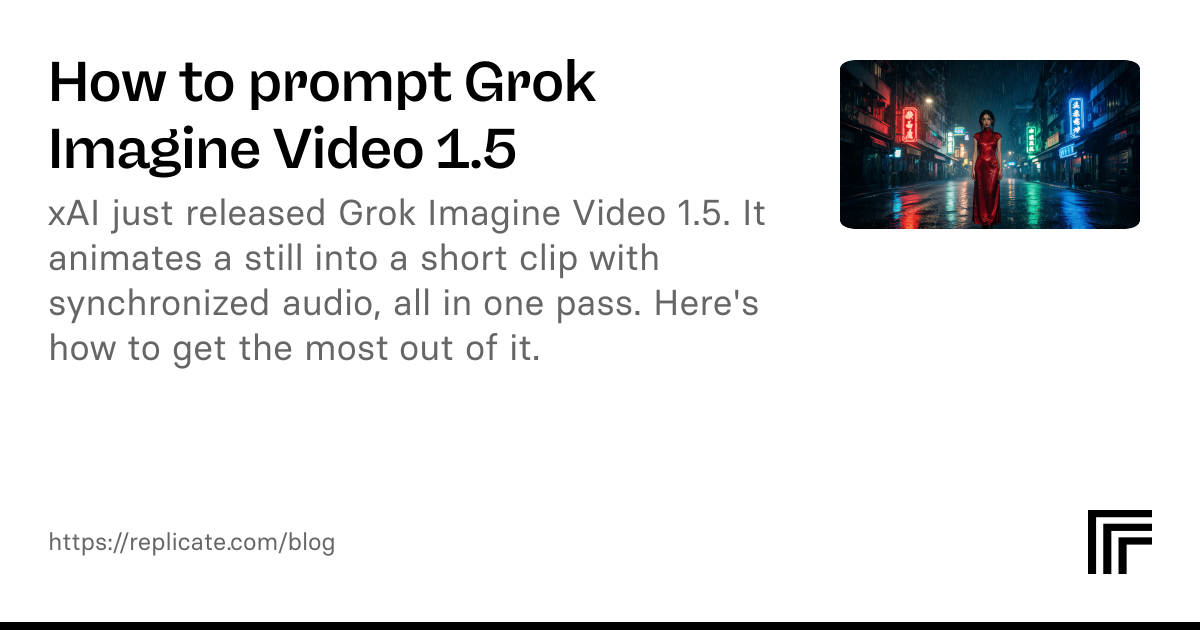
Mastering Grok Imagine Video 1.5 Prompts: A Deep-Dive for Creators
Grok Imagine Video 1.5 is a powerful AI video generation model that converts text prompts into short motion sequences. But text-to-video isn’t the same as text-to-image. The prompt patterns that work for still images often produce mediocre, static, or broken clips when you port them over unchanged. In this deep dive, I’ll show you exactly how to write Grok Imagine Video 1.5 prompts that deliver clear subjects, intentional action, deliberate camera language, and consistent style. More importantly, I’ll show you a repeatable workflow that uses Imagine Pro for reference frames so you can spend less time re-rolling and more time creating.
Understanding Grok Imagine Video 1.5 Prompts
What Is Grok Imagine Video 1.5?
Grok Imagine Video 1.5 is a text-to-video model designed to turn natural-language descriptions into a short clip. It sits in the same family as image generation models, but instead of one frame, it produces a temporal sequence of frames. That changes everything about how you write prompts.
A prompt that only describes a static arrangement leaves the model to invent motion on its own. The result often feels like a slideshow with accidental movement. A well-structured Grok Imagine Video 1.5 prompt tells the model what is happening, where it is happening, how the camera sees it, and how the scene evolves over time.
For creators, the model is useful for rapid concept visualization, style tests, mood boards, social media bumpers, and short narrative experiments. It is not a one-shot Hollywood camera crew. The output is short, generated, and imperfect. A strong prompt is the first step to usable output.
Why Prompting AI Video Models Requires a Different Mindset

Prompting AI video models requires a different mindset from prompting image models. With image generation, your job is to describe a frozen moment. With video, you need to describe a moment that has a before and an after. The model must know what moves, how it moves, when it moves, and from which angle the viewer sees it.
For example, an image prompt like "a lighthouse on a cliff at sunset" will generate a beautiful still. The video version needs motion: "a lighthouse on a cliff at sunset, waves crashing against the rocks, clouds drifting across the sky, camera slowly pushing toward the lighthouse." Without those motion cues, the model tends to produce an almost static clip with a subtle flicker or an odd camera slide. The better you think in terms of movement, timing, and camera language, the better your Grok Imagine Video 1.5 prompts will be.
Core Components of Grok Imagine Video Prompts

A reliable video prompt usually contains six components. You don’t need all six for every clip, but when output is missing something, it is almost always because one of them is absent.
| Component | What it controls | Example phrase |
|---|---|---|
| Subject | The central actor or object | "a woman in a yellow raincoat" |
| Action | What the subject is doing | "walking through puddles" |
| Environment | Where the scene happens | "in a neon-lit alley during rain" |
| Style | The visual treatment | "cinematic, photorealistic" |
| Camera movement | How the viewer moves | "slow tracking shot" |
| Time / duration | How the clip evolves | "seamless loop, continuous motion" |
Duration is often set by the model or platform, but time-based words like "seamless loop" and "slow motion" influence pacing. For image-to-video workflows, tools like Imagine Pro can generate a strong reference frame before you write the full video prompt. A reference image anchors the subject so the video model starts with a clear visual baseline rather than interpreting your words alone. That separation of concerns — clean still generation first, motion second — is one of the most reliable workflows I recommend.
A Practical AI Video Generation Guide: From Concept to Motion

Write a One-Sentence Video Concept First
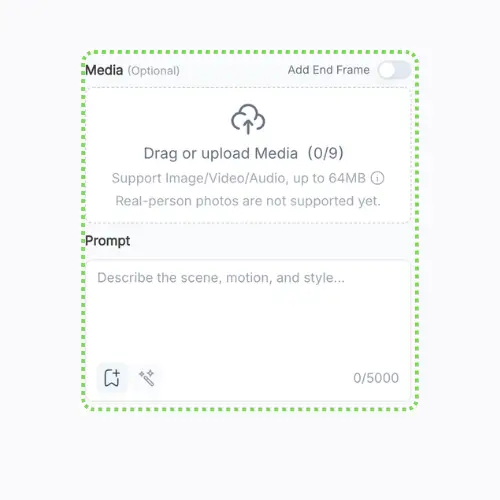
Before you write a full prompt, write one sentence that captures the entire clip. This sentence should contain a subject, an action, and a setting.
A fox runs across a snowy field as the camera pans to follow it.
If your idea cannot fit in one sentence, it is too complex. The model has a short generation window, and every extra idea competes for finite attention. Distill until you know what the single most important visual moment is.
Expand with Scene, Mood, and Motion Details

Now expand that sentence into a full prompt. Add mood, weather, time of day, and specific motion details.
Base sentence: A fox runs across a snowy field as the camera pans to follow it.
Expanded prompt:
A red fox running across a snowy field at dawn, mist rising from the snow, soft pink and blue sky, footsteps leaving tracks, camera panning smoothly with the fox, continuous motion, photorealistic, cinematic lighting
Notice the expansion adds sensory and environmental detail. It also tells the model what the camera is doing and how movement should feel. Without "camera panning smoothly," the model may keep the camera fixed and move only the fox. With "continuous motion," you increase the chances of a clip that flows through time.
Add Reference Styles and Visual Influences
The word "cinematic" is useful but vague. For more consistent aesthetics, use specific descriptors that reference known visual languages: "documentary nature film," "fantasy concept art," "film still from a 1970s sci-fi movie," "shot on anamorphic lens," "volumetric lighting." You can also generate a quick style exploration image with Imagine Pro.
In practice, I generate four or five still images with Imagine Pro using different style keywords, then pick one. The image that gets closest to my desired look becomes my reference. Then I describe the same visual language in the Grok Imagine Video 1.5 prompt. This two-step process is much more reliable than trying to describe a style from thin air. It also gives you a concrete artifact to share with collaborators.
How to Write Grok Imagine Video Prompts That Work

This section covers the exact choices that separate generic clips from intentional ones.
Start with a Clear Subject and Action
A subject alone is not enough. "A robot" tells the model nothing about what is happening. "A beat-up robot waving at the camera from a junkyard" establishes both a subject and an action. Avoid abstractions like "loneliness" or "chaos." Instead, describe something visible that implies those emotions: "an empty playground" or "papers swirling in the wind."
Describe the Environment and Atmosphere

Ground the scene with location, weather, time of day, and mood. "A castle" could be anything. "A ruined castle on a foggy moor at dusk, ravens circling above" gives the model useful constraints. Atmosphere also guides lighting and color grading. "Dusk" implies warm, dark tones. "Overcast" implies softer, flatter light.
Specify Camera Angles, Movement, and Perspective
Camera language is the most underused tool in video prompting. Add terms like:
- Close-up – tight on a face or object
- Wide shot – establishes the full scene
- Tracking shot – camera moves alongside the subject
- Dolly in – camera moves toward a subject
- Aerial view – high angle, often top-down
- Handheld – slightly unstable, documentary feel
A prompt like "a close-up of a hand pressing a button, camera dolly in, shallow depth of field" is far more controlled than "a button being pressed."
Use Time-Based Words for Transitions and Loops
Video prompts benefit from words that describe time. "Seamless loop" signals that the first and last frames should feel connected. "Dissolve" or "morph" is useful for dreamlike transitions. "Continuous motion" keeps the subject moving throughout the clip. Use these words carefully. A prompt with "seamless loop" and "suddenly" can confuse the model, because a loop and an abrupt change work against each other.
Advanced Grok Imagine Video Prompts for Cinematic Results
Once basic prompts work, you can push toward cinematic quality with visual techniques.
Using Lighting and Color Grading in Prompts
Lighting is a primary mood setter. Instead of "nice lighting," choose a specific condition: "golden hour, low sun, long shadows," "neon pink and blue lighting," "high contrast, film noir shadows," "soft diffused studio light," or "volumetric god rays through morning fog." Color grading terms such as "teal and orange," "pastel palette," or "muted Kodak film colors" also steer the output strongly. The more visually literate you are, the better the model can match your intent.
Directing Shot Composition and Depth of Field
"A shot of a detective standing under a streetlight" is average. "A low-angle shot of a detective standing under a streetlight, rule of thirds composition, the lamp's glow in the foreground with out-of-focus leaves" guides composition and focus. You can use "shallow depth of field" to blur the background or "deep focus" when everything must be sharp. "Focus pull from the streetlight to the detective's face" is an even stronger video cue because it includes motion.
Creating Seamless Loops and Continuous Motion
Looping is one of the most requested features for background clips and abstract art. To encourage a loop, avoid actions that have a clean endpoint. A candle flickering, a fish swimming, or clouds flowing across a mountain are better than a character walking away and disappearing. Add "seamless loop" and "continuous motion" to the end of your prompt. If the output does not loop, try shortening the action and focusing on rhythmic movement like rising bubbles or rotating crystals.
Negative Prompting and Constraint Phrases
Some video models support a separate negative prompt field, and some do not. If yours does not, you can still encode constraints directly into the prompt. Phrases like "stable face, no morphing, no flickering, consistent clothing, five fingers on each hand" can reduce common defects. In my testing, short constraint phrases at the end work better than long explanations. Avoid "don't make her look wrong" because it doesn’t specify the problem. Say exactly what you want to avoid: "no extra limbs, no distorted eyes."
Troubleshooting Grok Imagine Video Prompts: Common Mistakes and Fixes
When a generation fails, resist the urge to start over completely. Diagnose the prompt first.
Vague or Conflicting Subject Descriptions
The biggest cause of weird output is a vague subject. "A person standing in a city" asks the model to choose everything. Replace it with something specific. Also watch for conflicting directives: "a glass butterfly, no transparency" is impossible. If the object is glass, the model will make it translucent. Simplify and align your descriptors.
Missing Motion Cues
If your video feels static, you likely forgot motion cues. Re-read your prompt. Does it contain at least one action verb? Does it say how the camera moves? A prompt like "a mountain at sunset" has no motion. Add "birds crossing the frame, light moving across the peak, drone camera climbing." The model needs to know what changes from frame to frame.
Overloading the Prompt with Too Many Directives
A prompt with 300 words is as risky as one with three words. The model cannot give equal weight to everything. Keep the core to one or two focal ideas. If you want a character, a detailed environment, a camera move, a transition, a style, a palette, and a list of negative constraints, you will likely get a mess. Prioritize. Generate the base clip first, then refine in a second pass.
Iterative Testing: How to Diagnose Bad Outputs
The fastest workflow is to change one variable at a time. Start with a prompt that is 70% aligned. If the motion is wrong, fix movement only. If the style is wrong, fix style only. If the subject is deformed, add constraint phrases. Do not change four things and regenerate, because you will never learn what caused the improvement. I keep a simple text file with columns: prompt, problem, change made, result. Over dozens of tests, patterns become obvious.
Real-World Examples and Lessons from Production
These are composite examples based on repeated testing with Grok Imagine Video 1.5. Each prompt is broken down so you can see the skeleton.
Example 1: Photorealistic Nature Scene
A grizzly bear walking through a shallow river at sunrise, water splashing around its legs, photorealistic, warm golden light, mist over the water, slow tracking shot, shallow depth of field, continuous motion
- Subject: grizzly bear
- Action: walking through a shallow river
- Environment: river at sunrise, mist
- Camera: slow tracking shot
- Style: photorealistic, warm golden light
The key here is "water splashing around its legs" because it gives the model a dynamic interaction between subject and environment.
Example 2: Fantasy Character in Motion
A hooded sorcerer raising a glowing crystal staff in a rain-soaked temple courtyard, fantasy concept art, dramatic side lighting, embers floating in the air, low-angle hero shot, slow motion, stable face, no morphing
This prompt combines a strong pose, a magical effect, and atmospheric particles. "Low-angle hero shot" sets the camera position, while "stable face" prevents deformation. "Slow motion" changes the feeling of movement.
Example 3: Abstract AI Art Transformation
A cloud of iridescent smoke morphing into a flock of birds, surreal 3D art, high contrast, dark background, smooth morph, seamless loop, continuous motion
Abstract prompts need less physical logic and more flow. "Morphing into" is the transition cue. "Seamless loop" makes the output more useful as a background. "Continuous motion" keeps the visual energy alive.
What These Examples Teach About Prompt Structure
All three examples follow the same skeleton:
- Subject + action
- Environment
- Style and lighting
- Camera movement or time cue
- Constraints, if needed
Once you internalize this, you can assemble prompts quickly. The order is not strict, but putting the most important element first usually improves consistency.
Technical Deep Dive: How Grok Imagine Video 1.5 Interprets Your Prompt
Understanding how the model reads text helps you write better prompts. This deep dive explains the mechanics in practical terms.
Tokenization and Keyword Weighting
Like many language models, Grok Imagine Video 1.5 does not read your prompt as a human would. It splits text into tokens — small subword units. Some tokens carry more semantic weight than others, and the model’s attention mechanism decides which tokens matter for the visual output.
That is why a phrase like "small red fox" is stronger than "a little animal with red fur." The latter contains more tokens, but the important concepts are diluted. Use precise, well-known vocabulary. "Red fox," "shoal of fish," and "dolly zoom" are compact concepts that map to clear visual ideas.
Prompt Order and Its Effect on Output
The position of important words matters. In transformer-based models, earlier tokens often have a subtle advantage because they help set the global context for later tokens. If you bury the subject in a long stylistic description, the model may under-emphasize it.
Put the core "subject + action" at the beginning, then add environment, style, camera, and constraints. This pattern is simple but surprisingly effective.
How the Model Balances Motion and Visual Quality
There is a tradeoff between how much motion you request and how stable the frames are. A high-motion prompt with fast movement, a zoom, a transition, and a drastic perspective change can cause temporal flicker or morphing artifacts. The model has limited capacity to satisfy all requests.
If quality is your priority, keep the motion simpler. Use one primary action and one camera move. If you need complex motion, generate multiple takes and pick the best result.
Hidden Insights from Iterative Prompt Testing
After many iterations, several patterns emerge. First, repeating a key word can reinforce it, but it must be done naturally. "A wolf, a gray wolf, a wolf moving through pine trees" is repetitive in a useful way.
Second, negative phrases like "no wings" can confuse the model because it must first imagine wings. Try "a wingless horse" instead.
Third, a comma-separated list of descriptors tends to be more stable than a long sentence with many "and" connections. The model can parse attributes individually. These are empirical observations, not guarantees, but they consistently help.
AI Video Prompting Best Practices and Limitations
What Experts Recommend for Consistent Results
The most consistent advice across prompt engineering communities is to use a template. Start with a base, generate, and refine. Use style keywords from art and cinema. Use reference images when possible. Keep a library of prompts that work and treat them like reusable code snippets.
Include camera movement in every prompt, even a slight one. If a prompt does not mention the camera, the model may still move it, but likely in an unintentional way.
When to Use Grok Imagine Video 1.5 (and When Not To)
Use Grok Imagine Video 1.5 when you need speed, idea exploration, mood visualization, or short narrative clips. Don’t use it when you need frame-perfect control, exact brand assets, or long-form video with coherent characters across multiple scenes.
For those cases, use specialized video tools or generate still frames first. For precise image work, Imagine Pro gives you more control because still art has fewer unpredictable artifacts than video.
Performance and Quality Expectations
AI video generation is statistical. The same prompt can produce distinctly different takes. Do not expect perfect framing on the first attempt. Generate three or more clips and select the best one.
Motion smoothness varies, especially in complex scenes. Output resolution and clip length also depend on the deployment environment. With enough iterations and careful prompt tuning, most projects can reach usable quality. But plan for a few minutes of editing and cherry-picking before you share a final clip.
Streamline Your AI Video Workflow with Imagine Pro
The fastest path to reliable video generation is to combine Imagine Pro with Grok Imagine Video 1.5. Imagine Pro helps you solve the hardest part: visual art direction. Then the video model handles the motion.
Generate Reference Frames for Your Grok Imagine Video Prompts
Start by generating a single high-quality still image with Imagine Pro. Describe the image exactly as you want the video to begin: subject, action, environment, style, and lighting.
Once you have a strong still, use it as a visual reference in your video workflow by describing the same scene in words. This gives the video model a clearer target and reduces the number of failed generations. If your video model supports image input, you can often use the still directly.
Storyboard Scenes with Imagine Pro’s AI Art
Storyboarding is a superpower for video projects. With Imagine Pro, you can create a sequence of stills that represent your shot list: a wide shot of a location, a close-up of a character, an aerial view, a detail shot of an object.
Each still can then be converted into a video prompt. This is how many creators plan short films without expensive production tools. The storyboard also becomes a visual communication tool for clients or collaborators.
From Still Image to Motion: A Simple Workflow
Here is a practical pipeline that combines both tools:
- Write a one-sentence video concept.
- Generate reference art with Imagine Pro. Explore variations.
- Select the reference image closest to your vision.
- Rewrite the image description as a Grok Imagine Video 1.5 prompt. Add subject, action, environment, style, camera movement, and time cues.
- Generate multiple video takes from the same prompt.
- Compare the output and pick the best. If none work, adjust one variable and regenerate.
This workflow separates art direction from motion generation. It is much easier to fix a wrong style in a still image than in a video clip.
Try Imagine Pro Free and Elevate Your Creative Projects
If you want your AI video work to feel more intentional, start with Imagine Pro. Generate a reference image, storyboard a scene, and then use the prompt techniques from this article to bring it to life.
Imagine Pro is free to try, and it can save you significant time before you ever open a video prompt. The combination of strong still art and disciplined video prompting is the closest thing to a repeatable formula for good AI motion.
Compare Plans & Pricing
Find the plan that matches your workload and unlock full access to ImaginePro.
| Plan | Price | Highlights |
|---|---|---|
| Standard | $8 / month |
|
| Premium | $20 / month |
|
Need custom terms? Talk to us to tailor credits, rate limits, or deployment options.
View All Pricing Details