Developer Offer
Try ImaginePro API with 50 Free Credits
Build and ship AI-powered visuals with Midjourney, Flux, and more — free credits refresh every month.
How to prompt Grok Imagine Video 1.5 - Updated Guide
How to prompt Grok Imagine Video 1.5 - Updated Guide
How to Prompt Grok Imagine Video 1.5: An Updated Guide
The transition from AI image generation to AI video generation has rewritten the rules of prompt engineering. Still images are forgiving — you can iterate on composition, lighting, and style in a single frame. Video, on the other hand, demands motion, temporal consistency, and a coherent narrative across every frame. Grok Imagine Video 1.5 approaches prompts differently than its predecessors, and understanding that shift is the key to getting outputs that feel intentional rather than chaotic. This updated guide walks through everything you need to know about writing effective Grok Imagine Video 1.5 prompts, from the anatomy of a strong prompt to advanced techniques for motion control and style consistency.
What Makes Grok Imagine Video 1.5 Prompts Different
Why the 1.5 update changed prompt expectations
The first generation of AI video tools treated prompts like extended image captions. You described a scene, and the model did its best to animate it. Grok Imagine Video 1.5 shifts that paradigm by placing a much stronger emphasis on motion cues, camera language, and narrative timing. The model has been updated to parse action verbs and directional phrases with far greater precision, which means your choice of language directly controls whether the camera feels like a floating drone or a locked-off tripod shot.
What this means in practice: an old habit like writing "a dog runs in a park" produces a very different result than "a golden retriever sprints across a sunlit meadow, camera tracking alongside at ground level." The 1.5 generation understands that motion is the subject, not just the scenery. When I started experimenting with the updated model, the single biggest mistake I made was reusing prompt structures from image generation. Those prompts produced videos that were visually decent but motionally flat — the characters moved like cardboard cutouts being pushed by an invisible hand.
How prompt precision affects output quality

Small wording changes in Grok Imagine Video 1.5 prompts can produce dramatic differences in character consistency, camera direction, and scene flow. For instance, "the camera slowly pans right" and "the camera whips to the right" are not variations—they are almost completely different shots. One suggests a gentle reveal; the other suggests a dynamic cut or a rapid redirection of attention.
Ambiguous language is the enemy. An adjective like "quickly" is not as reliable as a concrete action phrase like "in three seconds" or "with a sudden burst." The model maps language to motion parameters, so precision in phrasing translates directly into precision in output. A common mistake I see is people stacking multiple vague motions, like "the camera moves around the scene," without specifying direction, speed, or framing. The result is usually a meandering, dizzying clip that feels closer to a handheld mistake than a deliberate cinematic choice.
The Anatomy of a Strong Grok Imagine Video 1.5 Prompt

Core components every prompt needs

Every effective Grok Imagine Video 1.5 prompt should include six fundamental components: subject, action, environment, lighting, camera movement, and style. You can think of these as the building blocks of a video scene. Missing any of them leaves the model to make arbitrary choices on your behalf, and arbitrary choices are the enemy of a consistent output.
- Subject: Who or what is the focus? Be specific about appearance, clothing, and distinguishing features.
- Action: What is the subject doing? Use concrete verbs like "walking," "sprinting," "turning," or "reaching."
- Environment: Where does the scene take place? Describe backgrounds, architecture, and spatial layout.
- Lighting: What time of day? Sunlight, neon, moonlight, or studio lighting changes the mood entirely.
- Camera movement: How is the shot captured? Pan, tilt, dolly, zoom, tracking, or static.
- Style: What visual language applies? Cinematic, photorealistic, anime, concept art, and so on.
Before you hit generate, run a quick mental checklist. If you can't answer all six questions after reading your prompt, the model can't either.
Prompt order and structure

The order of information in your prompt matters more than you might think. Grok Imagine Video 1.5 tends to weight early tokens more heavily in terms of scene composition. The recommended structure follows a logical sequence: subject → action → environment → camera → mood → style.
Here is a template:
[Subject], [action], in [environment], with [lighting], the camera [camera movement], in the style of [style], [quality descriptor]
This ordering works because it mirrors how a video scene is actually composed: the subject and action are the foundation, the environment grounds them, the camera interprets them, and the style defines the aesthetic wrapping. When you put style first, the model may prioritize visual texture over action, leading to gorgeous frames with awkward motion.
Prompt length: how much detail is enough?
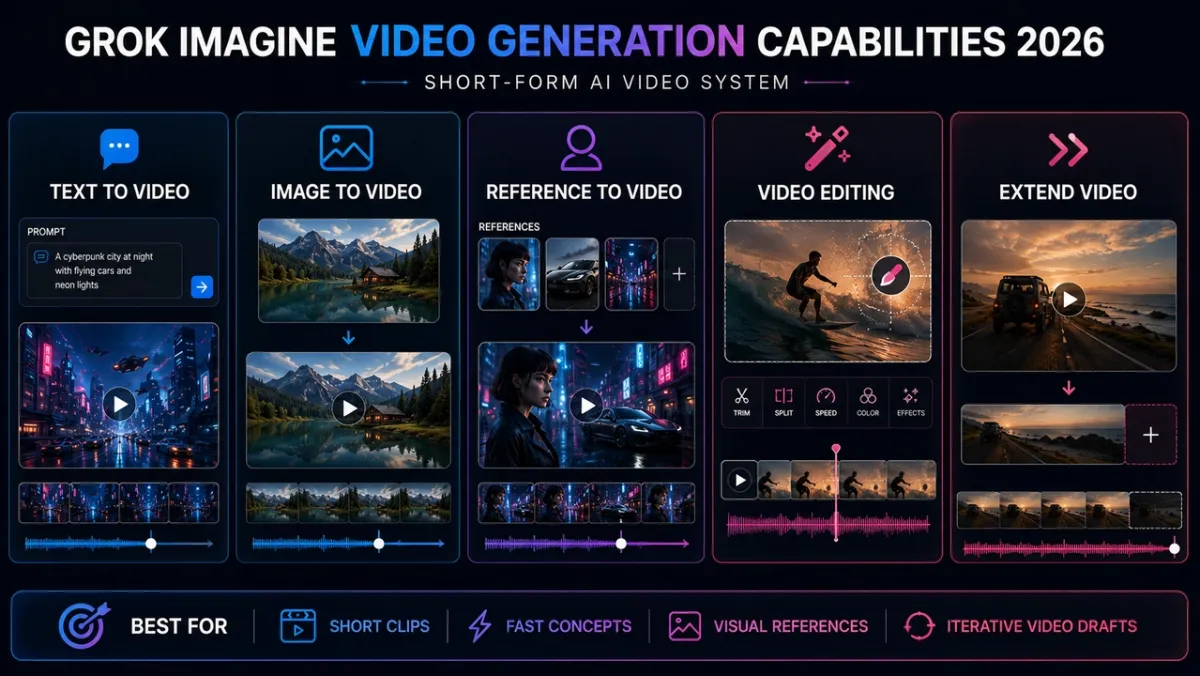
There is a fine line between specific and overloaded. A Grok Imagine Video 1.5 prompt that is 30 words long can deliver excellent results if every word earns its place. A 100-word prompt stuffed with conflicting descriptors often produces a mess of competing visual signals.
The sweet spot is roughly 40 to 60 words for most videos. If you find yourself adding multiple unrelated actions or more than one camera move, stop. Distill the core idea first. You can always generate multiple separate clips and stitch them together later. In my experience, the best prompts feel lean: they specify what matters and leave the model room to breathe on minor details.
How to Write Grok Imagine Video 1.5 Prompts: Step-by-Step

Step 1: Define the subject and motion intent

Start with a subject that is visually specific. Instead of "a person," write "a woman in a red leather jacket with short dark hair." This level of detail helps the model keep the subject recognizable across frames.
Next, attach a clear action. The action verb communicates movement intent, so choose it carefully. "Walking" is steady; "striding" is confident; "stumbling" is unstable. If you want natural motion, pair the verb with a motive: "a woman in a red leather jacket walks across a busy platform, glancing over her shoulder as a train pulls into the station." That one sentence gives the model a subject, an action, and a hint of narrative tension.
Step 2: Add environment, lighting, and atmosphere
The environment anchors your subject in a spatial context. Without it, the model may generate the subject floating in a void or on a generic background—one of the most common artifacts in AI video. Describe the environment with concrete nouns: "a rain-soaked alley," "a minimalist white gallery," "a neon-lit Tokyo intersection at midnight."
Lighting does more than illuminate; it sets the emotional tone. A prompt that includes "soft golden hour sunlight" feels radically different from "harsh fluorescent overhead lighting." Be explicit about the direction and quality of light, and the model will produce more coherent shadows and reflections across frames.
Step 3: Apply camera language in your prompt
Camera language is perhaps the most underused lever in AI video prompting. Many beginners describe the subject and environment in detail but forget to tell the model where the camera is and what it is doing. The result is a random framing choice that can undermine an otherwise solid prompt.
Grok Imagine Video 1.5 understands a wide range of camera terms. Here is an overview:
- Pan: camera rotates horizontally on a fixed axis, like scanning a landscape.
- Tilt: camera rotates vertically, revealing something above or below.
- Dolly: camera physically moves forward or backward.
- Zoom: lens magnification changes, closing in or pulling back without moving the camera body.
- Tracking shot: camera follows the subject laterally or behind them.
- Static shot: camera remains fixed; motion comes entirely from the subject.
Phrase camera instructions directly: "the camera slowly pans across the room to frame the window," rather than "the view gradually changes." Direct phrasing produces predictable results.
Step 4: Specify visual style and quality attributes
Style descriptors shape the entire aesthetic. Common options include "cinematic," "photorealistic," "fantasy concept art," "hand-drawn animation," "8K," "film grain," and "anamorphic." The trick is to keep them coherent. Combining "photorealistic" with "anime" creates a contradiction that the model resolves unpredictably. You are better off choosing one visual anchor and stacking compatible descriptors.
Quality attributes like "8K" and "highly detailed" are useful, but they do not compensate for a weak subject or vague action. Treat them as seasoning, not nutrition.
Step 5: Use Imagine Pro to generate reference keyframes
When you need a strong visual anchor, start with Imagine Pro, a companion tool for generating high-resolution still images. Create a keyframe that captures the exact subject, environment, and lighting you want, then use that still as the visual target for your Grok Imagine Video 1.5 prompt. In practice, this workflow produces far more consistent results because the model has a concrete reference image to align with, rather than relying purely on textual interpretation.
Imagine Pro offers a free trial, which makes it a low-friction starting point for testing whether a reference-based workflow improves your output. It certainly did in my own experiments—color palettes held, character features stayed stable, and ambient lighting matched the source image far more closely.
Advanced Grok Imagine Video 1.5 Prompts for Motion and Consistency
Controlling camera movement in longer sequences
Combining multiple camera actions in a single prompt is possible, but it requires restraint. Phrases like "the camera dollies in while tilting up to reveal the full building" produce deliberate, professional-feeling moves. What trips up the model is contradictory motion, such as "the camera dollies in while zooming out"—that is physically possible only with special equipment, and the model tends to render it as a strange morph.
For longer sequences, think in terms of one primary camera action and one optional secondary action. If a shot needs multiple cuts, break it into separate prompts with a consistent style anchor and stitch them in editing.
Maintaining temporal consistency across frames
Temporal consistency—keeping the subject's face, clothing, and color palette stable across all frames—is the holy grail of AI video generation. Grok Imagine Video 1.5 handles this better than previous versions, but prompting still matters. Use recurring descriptors throughout your prompt rather than listing them only at the start. Repeating a specific color or article of clothing, such as "the red leather jacket" or "the silver pendant," reinforces the model's tracking cues.
Characters benefit from both physical and behavioral anchors. If your subject is "a man with a thick gray beard wearing a navy wool coat," refer to the same descriptors in every prompt of the series. The consistency comes from repetition.
Negative prompts and exclusions
Grok Imagine Video 1.5 supports exclusion phrasing to avoid common AI artifacts. You can append exclusions like "no morphing," "no extra limbs," or "no text overlays" to your prompt. In my testing, these are most effective when framed as a short comma-separated list at the end of the prompt. They do not always work perfectly, but they reduce the frequency of catastrophic defects noticeably.
The most effective negative instructions target the most common failure modes. "No warping of facial features" is more actionable than the vague "no weird stuff." Be specific about what you want to avoid, and the model has a higher chance of honoring it.
Using consistent style anchors across multiple prompts
One of the best habits I have developed is building a reusable style phrase. A style anchor might look like this:
cinematic, anamorphic lens flares, teal and orange color grade, shallow depth of field, 35mm film grain, photorealistic
Drop this anchor into every prompt in a project. It creates a cohesive visual identity across clips. If you also generate a reference keyframe in Imagine Pro, that image serves as an even stronger style anchor. Combining a reusable text style with a visual reference is the closest thing to guaranteed consistency you will find with this model.
Grok Imagine Video 1.5 Prompt Templates by Use Case
Cinematic product reveal template
For product showcases, slow controlled motion works best:
[Product], [positioned on a surface], in [environment], with [studio lighting], the camera slowly dollies forward as the product rotates, cinematic, photorealistic, shallow depth of field, 8K
Character-driven narrative sequence template
For storytelling scenes, emphasize facial expression and emotional tone:
[Character with specific appearance], [action with clear emotional intent], in [environment], with [lighting], the camera [movement] to capture a close-up of [their] face, filmic, subtle color grading, emotional atmosphere
Landscape and environment transition template
For sweeping scenery changes, describe the transformation explicitly:
[Environment], transitioning from [starting state] to [ending state], while the camera [movement], dynamic lighting shift, epic establishing shot, photorealistic, high detail
Short looping video prompt template
For seamless loops on social media, frame the motion as cyclical:
[Subject or pattern] performing [cyclical action], in [environment], [lighting], locked-off camera, perfectly looped seamless motion, stylized, minimal camera movement
Real-World Examples: Weak Prompt vs. Refined Prompt
Example 1: From static scene to dynamic shot
Weak prompt:
a city street at night
The output is a generic, dimly lit street with no clear focal point and no reason for the camera to be there.
Refined prompt:
a busy Tokyo street at night, neon signs reflecting on wet asphalt, a lone chef in white uniform walking from a small ramen shop, steam rising from the doorway, the camera dollies backward to keep the chef centered as he pauses and looks up, cinematic, anamorphic, teal and orange grade, photorealistic, 8K
The refined prompt produces a clip with a clear subject, a directional camera move, layered lighting, and a mood that feels intentional.
Example 2: Turning an Imagine Pro still into a video prompt
I have used this workflow several times in production. First, I generate a high-resolution still image in Imagine Pro—say, a knight in a misty forest, lit by a beam of light. I then write a video prompt that reuses the same descriptors from the still. The key is to import the exact visual language: the same armor details, the same atmospheric fog, the same color palette. The resulting video inherits the still's strong composition, and the motion layers on top of that foundation.
Lessons from production experiments
A few things surprised me during testing. First, adding more movement to a prompt often made the video feel less dynamic, not more—motion chaos drains energy. Second, lighting cues mattered more than style terms for realism; a video graded as "photorealistic" but lit like a flat office looked fake, while a "cinematic" prompt with soft directional light looked convincing. Third, iteration is fast enough that you should never settle on the first output. Generate, evaluate, tweak one variable, and regenerate.
Common Grok Imagine Video 1.5 Prompt Mistakes and How to Fix Them
Overloading the prompt with too many actions
When a prompt contains three or four simultaneous actions—walking, waving, looking around, and talking—the model tries to render all of them and produces a chaotic output. The fix is a priority-based formula: choose one primary action and keep everything else as supporting context. If the primary action is "walking through a crowd," do not also ask the subject to be "turning and gesturing to someone." Save that for a separate shot.
Ignoring camera movement cues
As mentioned earlier, leaving out camera direction invites random framing. If the video comes back with a strangely angled or overly static composition, the missing piece is almost certainly a camera instruction. Add one.
Vague style phrases and contradictory modifiers
"Photorealistic anime" is a contradiction waiting to happen. Similarly, phrases like "dark and bright" or "dreamy but realistic" create conflicting signals. Decide what you actually want and express it with a single visual language. If you want the lighting of a dream, say "soft, diffused, surreal lighting" instead of "dreamy but realistic."
Repeating the same prompt without adjustments
Running the same Grok Imagine Video 1.5 prompt ten times and expecting different results is a common dead end. More importantly, even when outputs vary, you learn nothing if you do not change the input. Treat every prompt as an experiment. Track which phrases produce which behaviors, and refine based on what the model actually generated.
Expert Best Practices for Consistent Grok Imagine Video 1.5 Prompting
What official guidance and community experts recommend
The broader AI video prompting community converges on a few principles: write in clear subject-verb-object order, use specific visual nouns, describe camera movement with industry terms, and test one variation at a time. These principles align with the model's design, and they apply to Grok Imagine Video 1.5 as much as any other video generation model. Keep the prompt focused, keep the language concrete, and let the model supply the natural physics.
Building a reusable prompt library
One of the most valuable habits you can develop is maintaining a personal prompt library. Save every prompt that produced a good result, and tag it by use case: product reveal, character shot, landscape transition, loop, and so on. Include the final output alongside the prompt so you remember why it worked. Over time, this library becomes your personal style guide, and you can draw on proven building blocks instead of starting from scratch each time.
Evaluating prompt quality: your iteration workflow
Set up a simple rubric for scoring outputs. The four dimensions that matter are prompt adherence, motion smoothness, visual consistency, and overall realism. Score each clip from one to five. If a clip scores low in motion smoothness but high in prompt adherence, the prompt is good, but the motion phrasing needs work. If the prompt adherence is low, reconsider the subject or action phrasing. This rubric does not take long to apply, and it turns subjective taste into an actionable workflow.
When to Use Grok Imagine Video 1.5 — and When to Use an Alternative
Strengths and limitations of 1.5
To be honest about the trade-offs, Grok Imagine Video 1.5 excels at cinematic mood pieces, smooth camera moves, and consistent subject tracking. It struggles with complex physical interactions—such as characters shaking hands or objects colliding—and with rendering legible text. It also tends to degrade slightly on extremely long clips. Knowing these boundaries lets you design prompts that play to its strengths.
Ideal use cases for Grok Imagine Video 1.5
The model shines in several practical scenarios: ad concepts, storyboards for client pitches, short social media visuals, fantasy environment transitions, and creative experimentation. When the goal is exploring a vibe, testing a scene direction, or generating background assets for a larger production, Grok Imagine Video 1.5 is a strong choice. Use it for the creative heavy lifting, and keep alternatives in mind for projects that need physically accurate interactions or baked-in text.
Pairing Imagine Pro with Grok Imagine Video 1.5 for high-res stills
The workflow I keep coming back to is pairing Imagine Pro with Grok Imagine Video 1.5. Use Imagine Pro to generate high-resolution stills, reference keyframes, and concept boards—these give you precise control over composition and detail. Then write Grok Imagine Video 1.5 prompts that bring those stills to life as animated video concepts. If you are new to this pipeline, the Imagine Pro free trial is an easy way to test whether a reference-image workflow improves your video outputs. In my experience, it is the single most effective upgrade you can make to your prompting process.
Mastering Grok Imagine Video 1.5 prompts comes down to clear language, structured composition, and a willingness to iterate. The model rewards specificity, punishes ambiguity, and behaves best when you treat your prompt as a shot list rather than a wish list. Start with the six core components, respect the recommended order, and build a library of reusable anchors. With practice, you will reach the point where the model feels less like a dice roll and more like a reliable directing partner.
Compare Plans & Pricing
Find the plan that matches your workload and unlock full access to ImaginePro.
| Plan | Price | Highlights |
|---|---|---|
| Standard | $8 / month |
|
| Premium | $20 / month |
|
Need custom terms? Talk to us to tailor credits, rate limits, or deployment options.
View All Pricing Details