Developer Offer
Try ImaginePro API with 50 Free Credits
Build and ship AI-powered visuals with Midjourney, Flux, and more — free credits refresh every month.
How to prompt Seedream 5.0
How to prompt Seedream 5.0
Seedream 5.0 Prompts: The Deep-Dive Guide to Mastering AI Image Generator Prompts
If you’ve ever stared at a blank text box and tried to turn an idea into a photorealistic image, you know that prompting is everything. Seedream 5.0 is a powerful text-to-image AI model that turns natural language into visuals, but the quality of the output depends almost entirely on how you phrase that language. The difference between a flat, generic picture and a cinematic, detail-rich masterpiece often comes down to a few carefully chosen words. In this deep-dive guide, I’ll walk through the mechanics of Seedream 5.0 prompts, break down a repeatable prompt framework, and compare the manual approach with AI-powered alternatives like Imagine Pro.
Before going further, here’s the honest truth: Seedream 5.0 rewards technical prompters, but it isn’t the only path to stunning images. Some tools, like Imagine Pro, focus on speed and simplicity while producing high-resolution art from a single sentence. Both approaches have their place. This guide focuses on getting the most out of Seedream 5.0 prompts while also showing where an AI-powered image generator can save you time.
What Is Seedream 5.0 and Why Prompting Matters
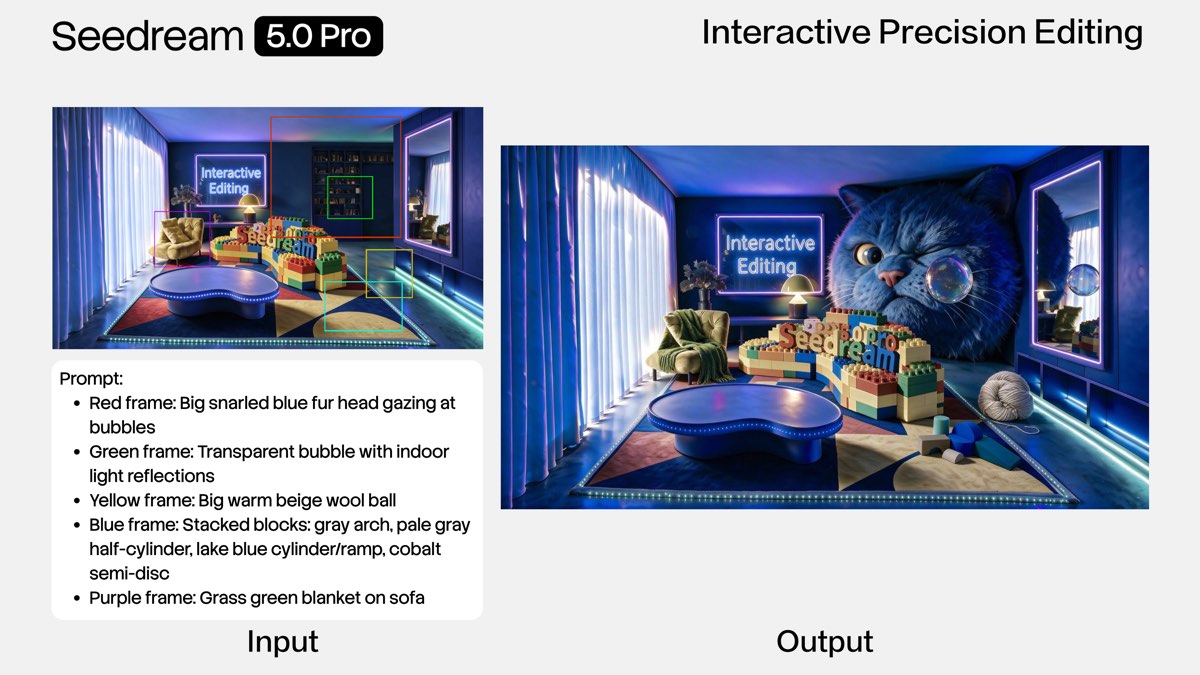
Seedream 5.0 is a text-to-image model that synthesizes images from descriptive prompts. It belongs to the new wave of generative AI systems that use diffusion-based architectures to create realistic and artistic content. Unlike earlier models that needed rigid structured inputs, Seedream 5.0 tries to understand natural language, including subject, style, spatial relationships, lighting, and even emotional tone.
Prompting matters because the model is essentially following a recipe. If your recipe says “a person in a forest,” you’ll get a generic image. If it says “a weathered park ranger in her late fifties, standing in a misty redwood forest at dawn, wearing a green rain jacket, soft volumetric light filtering through the trees, shot on 85mm lens,” you’ll get something far more intentional. The model has enormous latent skills, but your prompt is the control interface for unlocking them. Good Seedream 5.0 prompts reduce ambiguity, guide composition, and explicitly request quality cues that the model associates with professional images.
It’s also worth understanding what the model does not do. Seedream 5.0 does not read your mind. It doesn’t know that “beautiful” means warm golden light and shallow depth of field unless you say so. Vague emotional adjectives often dilute the prompt rather than help. Concrete visual language always outperforms abstract concepts. This is the first mental shift you need to make as a prompt engineer.
The Anatomy of a High-Performing Seedream 5.0 Prompt

A strong Seedream 5.0 prompt is not just a pile of keywords. It has a structure, a rhythm, and an underlying logic. After experimenting with hundreds of prompts, I’ve found that the most reliable outputs include these blocks in roughly this order:
- Subject – who or what is in the image.
- Action or interaction – what the subject is doing.
- Style and medium – photographic, cinematic, 3D render, oil painting, etc.
- Lighting – golden hour, studio strobes, neon glow, overcast.
- Composition and camera – close-up, wide shot, low angle, rule of thirds.
- Color palette and mood – muted earth tones, high contrast, serene, tense.
- Quality modifiers – highly detailed, sharp focus, 8K, professional color grading.
Order matters more than many people expect. Seedream 5.0, like many large models, uses attention mechanisms that assign different weight to words depending on their position and context. The leading words often anchor the image. If you start with “sunset” and then say “a mountain,” the model may emphasize sunset strongly. If you switch the order, the mountain becomes dominant. This is why you should put your primary subject first and keep critical descriptors early.
Clarity also matters. A high-performing Seedream 5.0 prompt avoids contradictory instructions. “A cozy bedroom that is also a vast empty warehouse” confuses the model. Instead, choose one dominant spatial concept. And every modifier should add visual information. “Nice,” “beautiful,” and “amazing” are almost meaningless to the diffusion process because they are not grounded in pixel-level features. “Golden rim light on hair,” “macro details on fabric texture,” and “shallow depth of field” are grounded.
Core Components of AI Image Generator Prompts for Seedream 5.0

Let’s break down the semantic elements that make AI image generator prompts effective for Seedream 5.0. You can think of these components as the parts of speech that the model consistently understands.
Subject specificity is the most important component. Instead of “a dog,” use “a border collie mid-sprint with ears swept back.” Specific nouns activate more precise visual representations in the model’s training space. Similarly, active verbs create more dynamic results than state-of-being verbs. “A wolf standing” is okay, but “a wolf leaping across a snow-covered log” is better.
Medium and style anchor the image in a particular visual tradition. For example, “shot on Kodak Portra 400” implies a film-photography look. “3D render, Octane render, subsurface scattering” implies a CG aesthetic. “Impasto oil painting” implies thick brushstrokes. You can also reference art movements: “art nouveau poster style,” “expressionist landscape,” or “minimalist vector illustration.” The more specific you are, the more the model can restrict its output to that style cluster.
Camera angle and lens type are powerful controls for composition. Seedream 5.0 responds well to terms like “low-angle shot,” “top-down view,” “Dutch angle,” “bird’s-eye view,” and “over-the-shoulder shot.” Lens references such as “24mm wide-angle,” “85mm portrait lens,” or “macro lens” give the model information about field of view and distortion. This is surprisingly effective because the model has seen vast amounts of photography with EXIF-like metadata in captions.
Lighting shapes not just brightness but also mood. “Golden hour” creates warm, side-lit scenes. “Overcast” produces soft shadows. “Neon signage lighting” creates cyan and magenta highlights. “Hard directional studio light” gives crisp shadows and editorial feel. Combining light direction with color is even better: “frosty morning light from the left” or “warm practical lamp light in a dark room.”
Resolution keywords like “8K,” “highly detailed,” and “ultra-wide angle” are less precise but still useful as quality boosters. They tell the model to allocate more texture and detail across the image. They are not silver bullets, but they consistently improve sharpness in Seedream 5.0 output.
Here’s a practical example of how these components combine:
“A grizzled lighthouse keeper carrying a brass lantern, walking up a spiral stone staircase, cinematic still from a period drama, warm candlelight mixed with cool moonlight from a broken window, low-angle shot, 35mm lens, deep shadows, rich amber and steel-blue palette, highly detailed, film grain”
This prompt includes every core component. It gives the model a clear subject, a specific action, a style reference, lighting information, a camera angle, a lens type, a palette, and a quality boost. The result will be far more intentional than a prompt like “lighthouse keeper in staircase.”
The Seedream 5.0 Prompt Guide: Step-by-Step Framework
Now let’s turn that knowledge into a repeatable process. I use the following four-step framework for nearly every serious Seedream 5.0 prompt.
Step 1: Start with a Clear Subject and Action
Write one sentence describing exactly what is in the image. Be specific about the subject’s identity, appearance, and current activity. Avoid pronouns unless you’ve already named the subject. Instead of “she is thinking,” try “a young scientist with braided grey hair examining a glowing sample through a brass microscope.” Active verbs like “examining,” “leaping,” “shattering,” and “weaving” give the model concrete motion cues. If the subject is an object, describe its material, age, and condition: “an ornate antique typewriter with tarnished brass keys and a single piece of yellowed paper.”
Step 2: Add Style, Medium, and Artist References
Decide whether you want photorealistic, cinematic, illustrative, or 3D-rendered output. Then add a medium phrase that anchors your choice. For photography, use camera and film terms. For illustration, mention ink, watercolor, gouache, or digital painting. For 3D, mention render engines and material properties. You can also reference broad visual genres such as “concept art for a sci-fi film,” “editorial fashion photography,” or “Miyazaki-inspired background art.” Avoid mixing two strong genres unless you intentionally want a hybrid effect, but even then, keep one dominant. A common mistake is combining “photorealistic” with “flat vector cartoon” in the same prompt; the model will average them into mush.
Step 3: Define Composition, Camera Angle, and Lighting
This step is often skipped, but it makes the difference between an image that looks randomly cropped and one that feels designed. Specify whether the subject should be centered, off-center, full body, or face-only. Use terms like “close-up,” “extreme close-up,” “wide establishing shot,” “medium shot,” or “aerial view.” Mention camera height: “eye-level,” “worm’s-eye view,” or “looking down from above.” Then choose a lighting direction and quality. “Soft diffused light from a large window on the left,” “harsh overhead flashlight beam,” and “warm backlight with lens flare” all produce dramatically different images. Even a simple phrase like “dark background with a single rim light” clarifies the visual hierarchy.
Step 4: Finish with Quality Boosters and Negative Prompts
Quality boosters go at the end of your prompt: “highly detailed,” “sharp focus,” “8K,” “intricate textures,” “professional color grading,” “raw photo,” “award-winning composition.” These don’t need to be numerous; five or six well-chosen terms are enough. Negative prompts are equally important. Seedream 5.0 generally supports negative prompts to tell the model what to avoid, such as “blurry, low resolution, disfigured hands, extra fingers, watermark, text, logo, oversaturated.” Use negative prompts to eliminate common artifacts and to prevent the model from adding default elements you don’t want. For example, if you don’t want a person in a landscape, add “no people” to the negative prompt. In practice, I’ve found that a good negative prompt is often as important as the positive prompt itself.
Advanced Seedream 5.0 Prompt Guide: Techniques from the Field
Once the basics are comfortable, it’s time to go one level deeper. This is where you start thinking about how the model actually understands text and how to fine-tune the output through parameters.
How Seedream 5.0 Interprets Text Under the Hood
Seedream 5.0 uses a text encoder to convert your prompt into embeddings, then a diffusion process attends to those embeddings at every generation step. In simple terms, the model tokenizes your words and maps them to concepts in a high-dimensional space. Some tokens receive more attention than others, especially if they appear earlier in the prompt or are visually distinctive. This is why the first few words carry outsized influence. If you put “cinematic lighting” first, the entire image will prioritize lighting over your subject. Structure your prompt accordingly: subject first, then the most important attributes, then secondary details.
Attention also explains why contradictory prompts fail. The model cannot satisfy “small apartment” and “vast cathedral ceiling” simultaneously, so it compromises in visually confusing or unrealistic ways. Keep the prompt internally consistent. If you want a surreal element, place it in a single clause rather than trying to mix contradictory spatial descriptors.
Using Prompt Weighting, Parameters, and Advanced Settings
Beyond text, Seedream 5.0 typically exposes parameters such as aspect ratio, guidance scale, seed, style strength, and sampling steps. These settings give you additional control that pure text cannot.
- Aspect ratio controls the image shape. A 16:9 ratio suits landscapes and wide scenes; 4:5 suits portraits; 1:1 suits central subject compositions.
- Guidance scale controls how closely the model follows the prompt. A higher value means stricter adherence but can produce oversaturated or artificial-looking output. A lower value allows more creative divergence but may ignore details. For Seedream 5.0, I often start around 7 and adjust from there.
- Seed value gives you reproducibility. If you find an image you like, keep the seed and tweak only the prompt wording. If you want random variation, change the seed.
- Style strength blends model default style with your prompt-driven style. Lower style strength makes the image adhere more closely to the prompt; higher style strength can push it toward Seedream 5.0’s native aesthetic.
- Sampling steps can improve crispness. Use more steps for complex scenes, but there’s a threshold beyond which you get no additional benefit.
Prompt weighting is another field-level technique. In some interfaces, you can append :1.2 to a keyword to increase its weight and :0.8 to decrease it. For example, oak tree:1.3 rainbow:0.7 tells the model to prioritize the tree over the rainbow. This is useful when you want to force the subject into focus while keeping a secondary element present. Many commercial image generators hide prompt weighting, but Seedream 5.0 and similar advanced models often expose it.
Iterative Prompt Refinement: From Draft to Polished Image
The best Seedream 5.0 prompt is rarely the first one. The workflow that consistently works for me is: start simple, generate a batch, evaluate the results, add constraints, and refine the negative prompt.
A typical loop looks like this:
- Write a basic prompt: "an astronaut on Mars."
- Generate four images and pick the most promising direction.
- Add subject details: "an astronaut in a worn white spacesuit kneeling beside a habitat module."
- Add lighting and composition: "late afternoon Martian light, dust storm on the horizon, low-angle wide shot."
- Add negative prompt: "blurry, low detail, extra limbs, absurd proportions, text."
- Generate again and compare.
After two or three iterations, you’ll usually have something worth keeping. The danger is falling into an endless refinement loop. If you need a quick, finished asset and don’t want to spend fifteen minutes tweaking weights, consider using a more streamlined alternative. An AI-powered image generator like Imagine Pro can turn a single descriptive sentence into polished, high-resolution artwork instantly. That makes it a great fallback when manual Seedream 5.0 prompt engineering feels like a rabbit hole.
Real-World Seedream 5.0 Prompt Examples and Common Mistakes
Let’s look at three realistic scenarios and the specific prompts used to solve them.
Example 1: Photorealistic Portrait Prompt
A simple portrait prompt for Seedream 5.0 might look like:
“Photorealistic portrait of an elderly jazz trumpet player with deep wrinkles and silver stubble, eyes closed, smiling softly as if listening to music, warm stage spotlight from above, black background, 85mm lens, f/1.8 shallow depth of field, sharp details in skin texture, professional color grading, highly detailed.”
This works because the subject is specific, the expression is described with a cause, the lighting is directional, the lens is named, and quality modifiers are present. It avoids generic words and tells the model exactly what skin and detail level to produce.
Example 2: Fantasy Landscape Art Prompt
For an epic fantasy scene, try:
“Fantasy landscape of a ruined stone citadel on a stormy cliff, ancient statues covered in moss, violet lightning splitting the sky, mist rolling through the valley, deep purple and teal color palette, cinematic concept art, ultra-wide 16:9 composition, high drama atmosphere, intricate architectural details, 8K, sharp focus.”
Here the environment, weather, palette, architectural elements, and atmosphere are all specified. The phrase “cinematic concept art” anchors it in a recognizable visual genre.
Example 3: Commercial Product Shot Prompt
Product photography requires precision around surfaces and reflection:
“Commercial product photo of a matte black electric water bottle on a wet slate surface, water droplets, soft window light from the left, subtle reflection, teal accent lighting in the background, high-end advertising style, centered composition, sharp focus, texture detail on the bottle, professional studio photography.”
The prompt works because it describes the product’s finish, the environment, the light direction, the reflection, and the composition style. It also includes a color accent to give the background personality.
Common Seedream 5.0 Prompt Mistakes and How to Fix Them
The first common mistake is using overly short prompts. A single noun may generate an image, but it won’t give you control over composition, mood, or detail. Expand to at least fifteen to twenty words.
The second is conflicting style keywords. Putting “photorealistic” and “anime illustration” together often produces neither. Choose one dominant style and add secondary details that reinforce it.
The third is ignoring negative prompts. Without negative prompts, you might get unwanted text, extra fingers, weird perspective, or oversharpening. Write a small set of core negative terms for every generation.
The fourth is mixing too many artists or genres. Referencing “in the style of Picasso, Van Gogh, and H.R. Giger” will create a confused mashup. If you want to combine artists, pick two or three with some visual overlap.
The fifth is being vague about the scene. “A market scene” leaves too much unspecified. Instead, describe the time of day, the architecture, the goods being sold, the crowd density, and the lighting.
Seedream 5.0 vs Imagine Pro: Choosing the Right AI Image Generator
Not every project demands deep prompt engineering. Understanding when to use Seedream 5.0 and when to use an alternative can save enormous time.
Seedream 5.0 Strengths and Limitations
Seedream 5.0 shines when you need granular control. If you’re exploring precise lighting, camera angles, prompt weighting, or negative prompt logic, it gives you the freedom to iterate until the image matches your internal vision. It also allows advanced parameters like seed and guidance scale, which are essential for reproducibility in production workflows. The limitation is the learning curve. Without experience, most users will generate mediocre results and feel frustrated. It’s also slower, since you spend time refining prompts rather than getting a final asset on the first attempt.
Imagine Pro: The Effortless Alternative for High-Resolution Art
If your priority is output speed and ideation efficiency, Imagine Pro is an excellent complementary tool. Imagine Pro generates stunning, high-resolution images and art in seconds, from photorealistic photos to fantasy creations. You can bring ideas to life effortlessly without learning the nitty-gritty of tokenization and prompt weighting. It is particularly useful when you have a sentence-long concept and need an eye-catching visual now. The trade-off is less fine-grained control, but for many creative projects, that’s acceptable.
Side-by-Side Comparison: Seedream 5.0 vs Imagine Pro
| Factor | Seedream 5.0 | Imagine Pro |
|---|---|---|
| Ease of use | Moderate to steep learning curve | Very easy, works with simple sentences |
| Prompt complexity | High-level prompt engineering expected | Minimal prompt needed |
| Speed | Slower due to prompt iteration | Generates high-resolution art in seconds |
| Image resolution | High, depending on parameters | High resolution, polished output |
| Learning curve | High for best results | Low, intuitive |
| Ideal use case | Professional projects, precise art direction | Quick ideas, social content, fast visualization |
A good strategy is to use both. Spend time on Seedream 5.0 when you have a specific creative vision and the time to execute it. When you need speed and a polished result without the hours spent on prompt refinement, start with Imagine Pro’s free trial and see how close it gets to your idea. In many cases, the faster tool is also the more practical one.
Seedream 5.0 Prompt Guide: Expert Tips and FAQs
Prompt Formulas That Consistently Work in Seedream 5.0
One formula that has never let me down is:
[Subject] + [Action] + [Style/Medium] + [Composition] + [Lighting] + [Color Palette] + [Quality Modifiers]
For example:
“A lone samurai standing on a wooden bridge in a bamboo forest, gripping his katana, cinematic still from a Japanese historical film, shot from a low angle, misty morning light with god rays, muted greens and grey palette, highly detailed armor texture, sharp focus.”
This formula is reusable across genres. You can swap in a corporate product, a fantasy creature, or a magazine portrait. The structure ensures no important visual dimension is missing.
How to Adapt AI Image Generator Prompts Across Different Models
Prompts are not fully transferable between models. Seedream 5.0 may heavily weight certain terms that another model ignores. For example, camera lens terms are useful in Seedream 5.0 but may have no effect in a model that was not trained on photographic metadata. When moving between tools, simplify the prompt first. Keep the subject, style, lighting, and mood but remove model-specific jargon. Then generate a small batch and add back details based on what the new model responds to. Conversely, when moving from a simpler tool into Seedream 5.0, add more technical constraints to take advantage of its capabilities.
Frequently Asked Questions About Seedream 5.0 Prompts
What is the ideal prompt length for Seedream 5.0? There is no strict count, but I aim for thirty to fifty words in the positive prompt. That is enough to specify all core components without diluting the attention mechanism. If a prompt is longer, the model may underweight important early terms. Use negative prompts as a separate channel for exclusions.
Do negative prompts actually improve Seedream 5.0 results? Yes, especially for visual artifacts. Telling the model to avoid “blurry, extra fingers, distorted faces, watermark, text” can dramatically improve reliability. You’ll still need to inspect the image, but the number of obvious errors drops.
Can I use the same prompt in Seedream 5.0 and Imagine Pro? You can, but the ideal prompts are different. Imagine Pro is designed to handle more descriptive, natural-language prompts without as much technical jargon. A prompt full of “85mm lens, f/1.8, 8K” may still work, but it could be unnecessarily complex. For Imagine Pro, a clean sentence like “a photorealistic portrait of an elderly jazz musician in a spotlight” is enough. Seedream 5.0 rewards the extra technical layer; user-friendly tools like Imagine Pro reward clarity.
Final Thoughts on Seedream 5.0 Prompts
Mastering Seedream 5.0 prompts is a practical skill that improves with deliberate practice. Start with a clear subject, layer in style, lighting, composition, and quality cues, and use negative prompts to remove the things you don’t want. Then iterate systematically. Over time, you’ll develop a sense for which words have the strongest effect in the model’s latent space. But always remember that prompt engineering is a means to an end. If your goal is a beautiful visual quickly, an easier tool might serve you just as well. The best AI image generator is the one that turns your idea into an image without making the creative process a struggle.
Compare Plans & Pricing
Find the plan that matches your workload and unlock full access to ImaginePro.
| Plan | Price | Highlights |
|---|---|---|
| Standard | $8 / month |
|
| Premium | $20 / month |
|
Need custom terms? Talk to us to tailor credits, rate limits, or deployment options.
View All Pricing Details