Developer Offer
Try ImaginePro API with 50 Free Credits
Build and ship AI-powered visuals with Midjourney, Flux, and more — free credits refresh every month.
The Ultimate Guide to FLUX 3 - Comprehensive Review
The Ultimate Guide to FLUX 3 - Comprehensive Review
FLUX 3: The Complete Deep-Dive Review for AI Image Generation in 2026
The landscape of AI image generation has evolved dramatically, and FLUX 3 represents a significant leap forward in what creators can achieve with text-to-image synthesis. Whether you're a designer exploring new creative frontiers, a marketer seeking rapid visual content, or a developer integrating image generation into production pipelines, understanding FLUX 3's capabilities is essential. This comprehensive deep-dive examines the model's architecture, real-world performance, practical workflows, and how it compares to accessible alternatives like Imagine Pro. For those seeking an efficient entry point into AI-powered image creation, Imagine Pro offers an AI-powered tool that generates stunning, high-resolution images and art in seconds—from photorealistic photos to fantasy creations—with a free trial available.
What Is FLUX 3?
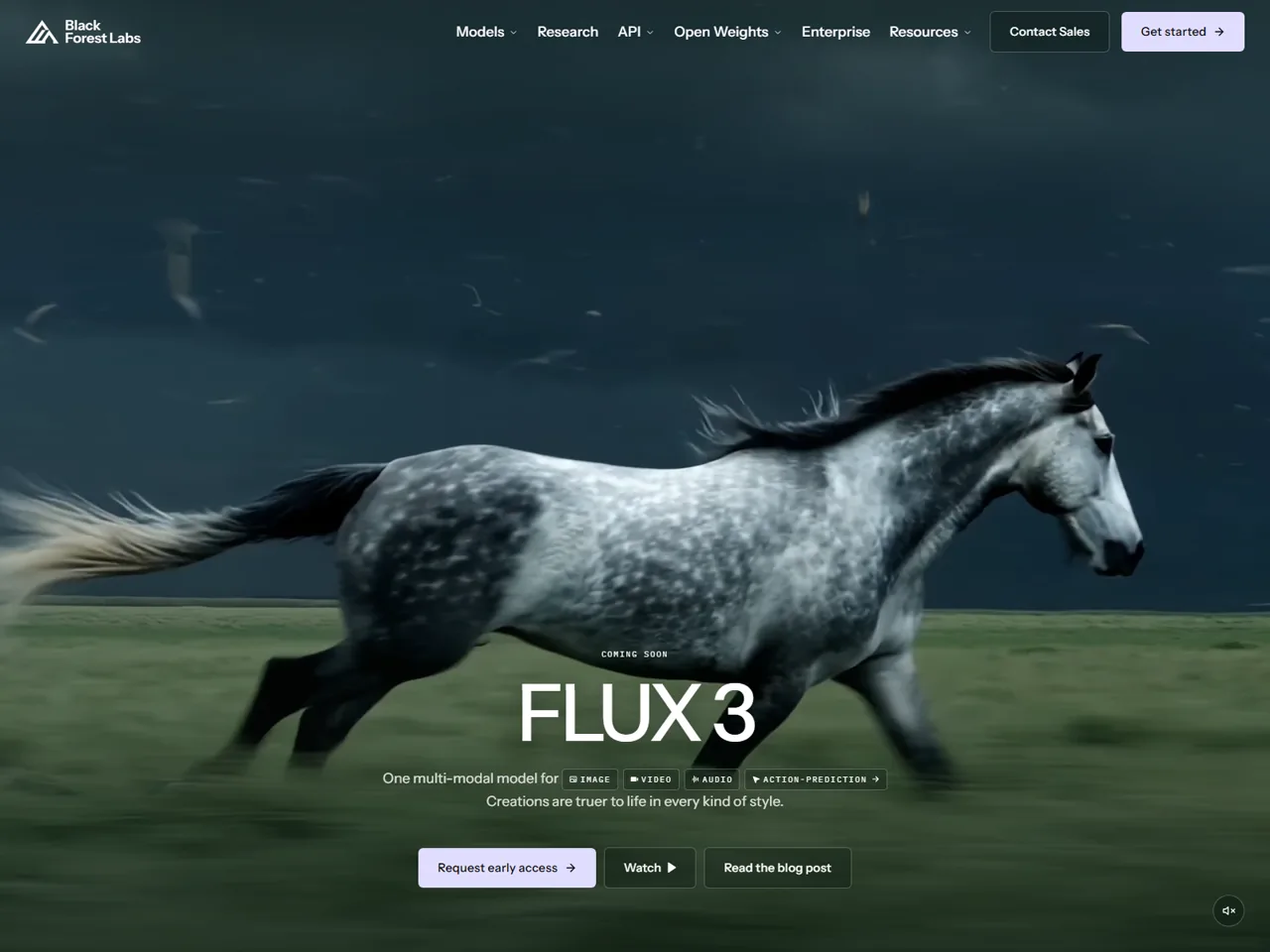
FLUX 3 is an advanced AI image generation model that builds upon the diffusion-based architecture pioneered by earlier text-to-image systems. Developed as a successor to previous FLUX iterations, it positions itself in a competitive landscape alongside models from Stability AI, Midjourney, and OpenAI's DALL-E series. The model targets professionals who need both photorealism and artistic flexibility without sacrificing prompt adherence.
FLUX 3 Explained for Creators and Marketers

At its core, FLUX 3 functions as a text-to-image engine that transforms natural language prompts into visual outputs. Unlike simpler generators, it excels at understanding complex, multi-layered descriptions—a critical capability for marketing teams producing campaign assets or designers iterating on concept art. The model's training emphasizes compositional accuracy, meaning it handles spatial relationships between objects far better than earlier generations.
For creators, the practical implications are significant. A product marketer can describe a lifestyle shot with specific lighting, camera angle, and mood, and FLUX 3 will render something close to the mental image. Artists working on storyboards can rapidly prototype scenes without wrestling with prompt syntax. Product teams evaluating the model should consider whether their workflow prioritizes maximum control (where FLUX 3 shines) or rapid iteration (where simpler tools may suffice).
Key Specs and Model Variants
FLUX 3 supports multiple resolution tiers, with native generation capabilities scaling up to high-resolution outputs suitable for print and web. The model offers several generation modes: standard text-to-image, image-to-image transformation, inpainting for targeted edits, and outpainting for scene extension. Variants include a full-quality model for maximum fidelity and distilled versions optimized for speed.
What separates FLUX 3 from earlier generations is primarily its improved prompt comprehension and reduced artifacts. In practice, this means fewer "hallucinated" objects appearing in outputs and more reliable adherence to negative prompts—the instructions telling the model what not to include.
Who Should Care About the FLUX 3 AI Image Generator

The FLUX 3 AI image generator serves users who demand precision. If your workflow involves detailed scene specification, brand consistency across multiple assets, or commercial licensing requirements, FLUX 3 warrants serious evaluation. Designers appreciate its stylistic range; marketers value its speed-to-quality ratio; developers benefit from API access for pipeline integration.
However, when implementing a simpler tool like Imagine Pro may be more efficient—particularly for rapid ideation, social media content, or teams without technical resources to manage model deployment. Imagine Pro's promise of generating high-resolution images in seconds with minimal friction addresses the needs of fast-moving creators who prioritize velocity over granular control.
How the FLUX 3 AI Image Generator Works
Understanding the mechanics behind FLUX 3 helps users make informed decisions about prompts, settings, and deployment strategies. While you don't need a machine learning background, grasping the fundamentals improves output quality significantly.
Architecture, Training, and Diffusion Pipeline
FLUX 3 operates on a latent diffusion architecture. The process begins by encoding your text prompt into a mathematical representation the model understands. Simultaneously, random noise is generated in a "latent space"—a compressed representation of images where the model operates. Through iterative denoising steps, the model gradually transforms pure noise into a coherent image guided by your prompt.
Training data scale matters enormously here. FLUX 3 was trained on billions of image-text pairs, enabling it to recognize an enormous range of concepts, styles, and compositions. The model learns statistical relationships between words and visual features, which is why precise language produces better results than vague descriptions.
Prompt Parsing, Controls, and Resolution Limits
FLUX 3 interprets prompts through a sophisticated text encoder that maps words to visual concepts. Unlike simple keyword matching, it understands relationships—"a red car next to a blue house" produces different results than "a blue car next to a red house." Negative prompts work by explicitly reducing the probability of certain features appearing, though they're not always perfectly reliable.
Key controls include seed values (for reproducibility), guidance scale (how literally the model follows your prompt), aspect ratio, and step count (quality vs. speed tradeoff). Resolution limits vary by deployment—local installations may cap at certain sizes due to VRAM, while cloud APIs often support higher outputs.
Speed, Hardware, and Cloud vs Local Access
| Deployment Mode | Typical Latency | Hardware Requirement | Privacy | Cost Model |
|---|---|---|---|---|
| Local GPU | 5-30 seconds | 12GB+ VRAM recommended | Full | Hardware investment |
| Cloud API | 2-15 seconds | None | Data leaves device | Per-generation |
| Hosted Tools (e.g., Imagine Pro) | Seconds | None | Varies | Subscription/Free tier |
Cloud generation offers accessibility without hardware investment, while local setups provide privacy and unlimited generations after initial setup. The trade-off involves latency, cost structure, and data governance—critical considerations for enterprise teams.
Practical Implications for Non-Technical Users
For non-technical users, the key takeaway is straightforward: prompt clarity matters enormously. Models like FLUX 3 reward specific, structured descriptions. Instead of "a nice landscape," try "a golden-hour mountain landscape with dramatic clouds, shot on 35mm film, shallow depth of field." This specificity translates directly to output quality.
Local setup is often overkill for creators who generate images occasionally. Hosted tools like Imagine Pro eliminate technical friction, letting users focus on creative decisions rather than GPU driver compatibility.
FLUX 3 Features and Output Quality
Evaluating FLUX 3 requires honest assessment across multiple dimensions. No model excels at everything, and understanding strengths and weaknesses prevents disappointment.
Photorealism, Illustration, and Artistic Styles
FLUX 3 performs exceptionally well in photorealistic contexts—portraits, product shots, and environmental scenes benefit from its attention to lighting and texture. Skin tones render naturally, and material properties (metal, fabric, glass) are convincing. In illustration and concept art, the model handles anime, painterly styles, and graphic design aesthetics competently, though some users report that extremely stylized outputs occasionally lack the "hand-crafted" feel of specialized artistic models.
Text Rendering, Anatomy, and Complex Compositions
Text-in-image generation has improved markedly in FLUX 3 compared to predecessors, but it remains imperfect. Short phrases and single words render reliably; longer text or unusual fonts still produce errors. Hands and faces—historically the Achilles' heel of AI image generation—are significantly better, though complex poses with multiple figures can still produce artifacts.
A hidden insight: structuring prompts to describe the scene composition before adding stylistic modifiers improves reliability. Lead with subject and action, then layer in style, lighting, and camera details.
Editing, Inpainting, and Upscaling Capabilities
Inpainting allows targeted edits—changing a shirt color, removing an object, or adding elements to specific regions. This is production-critical for iterative workflows. Outpainting extends images beyond original boundaries, useful for creating wider compositions. Upscaling workflows can push outputs to print-ready resolutions, though quality varies depending on the method.
Known Limitations and Failure Modes
Common defects include prompt drift (later generations in a batch deviating from the original intent), anatomical errors in complex poses, and repetitive textures in large uniform areas (like fields or walls). Licensing ambiguity remains a concern for commercial use—always verify terms before using AI-generated images in revenue-generating contexts.
FLUX 3 vs Imagine Pro: Key Differences
This comparison focuses on practical fit rather than declaring a universal winner. Different workflows demand different tools.
Speed and Ease of Use
FLUX 3 requires configuration—whether local installation or API integration—before generating a single image. Imagine Pro prioritizes immediate accessibility, generating high-resolution images in seconds with minimal friction. For teams needing quick concept validation, this speed advantage is substantial.
Image Quality and Style Range
Both tools produce impressive results, but they excel in different areas. FLUX 3 offers finer control over composition and supports advanced techniques like prompt weighting. Imagine Pro delivers consistent quality across photorealistic and fantasy styles with less tuning required. Choose based on whether you need precision or velocity.
Pricing, Free Trial, and Accessibility
FLUX 3's cost structure depends on deployment—local hardware investment or per-generation API fees. Hidden costs include GPU time, revision iterations, and storage. Imagine Pro offers a free trial, allowing teams to validate output quality before committing. This accessibility lowers the barrier for experimentation.
Workflow, API, and Team Collaboration
FLUX 3 provides API access for pipeline integration, appealing to development teams building custom tools. Imagine Pro emphasizes simplicity, positioning itself for teams that value speed and ease over deep customization. For collaborative workflows, asset management and sharing features matter—evaluate both based on team size and technical capacity.
Best FLUX 3 Alternative: How to Choose
Finding the best FLUX 3 alternative depends on your specific requirements. Here's a decision framework.
Evaluation Criteria: Control, Cost, Resolution, Speed
Assess your needs across five dimensions: control depth (how much fine-tuning you require), output resolution, pricing model (subscription vs. usage-based), generation speed, and commercial rights.
When Imagine Pro Is the Better Fit
Imagine Pro wins for quick ideation, high-resolution art generation, non-technical users, and teams needing a free trial to validate quality. If your workflow prioritizes getting to a usable image fast rather than exploring every parameter, Imagine Pro's streamlined experience is advantageous.
Other Alternatives Worth Testing
Open-source models (like Stable Diffusion variants) offer maximum customization for technical teams. Enterprise APIs from major cloud providers provide scalability. All-in-one design platforms integrate image generation alongside other creative tools.
Decision Matrix for Solo Creators and Teams
| Priority | Recommended Approach |
|---|---|
| Maximum control | FLUX 3 (local or API) |
| Fastest iteration | Imagine Pro |
| Budget-conscious | Imagine Pro free trial, then evaluate |
| Enterprise integration | FLUX 3 API + custom pipeline |
| Hybrid workflow | FLUX 3 for control-heavy tasks, Imagine Pro for rapid drafts |
FLUX 3 Tutorial: From Prompt to Final Image
This tutorial walks through a practical workflow.
Step 1: Writing Prompts That Match FLUX 3's Strengths
Structure prompts with subject first, then style, lighting, camera, and composition. Avoid keyword stuffing—more words don't always mean better images. Example: "Portrait of a woman, natural window light, shallow depth of field, 85mm lens, neutral background."
Step 2: Setting Aspect Ratio, Style, Seed, and Guidance
Portraits typically use 3:4 or 1:1 ratios. Landscapes favor 16:9. Product shots often work in 4:5 for social or 1:1 for e-commerce. Lock seeds during iteration to isolate variable changes.
Step 3: Iterating with Variations and Inpainting
Use seed locking to refine specific elements. Inpainting lets you fix hands or adjust backgrounds without regenerating the entire image.
Step 4: Upscaling and Exporting for Print or Web
Upscale before export. For print, use TIFF or high-quality PNG; for web, optimized JPEG or WebP. Check color profiles for print workflows.
Step 5: Faster Iteration with Imagine Pro
Complement your FLUX 3 workflow with Imagine Pro for quick high-resolution drafts and fantasy or photorealistic exploration using its free trial. Use FLUX 3 for final production assets.
Real-World Use Cases and Case Studies
Marketing Campaigns and Social Content
Teams use FLUX 3 for campaign ideation, generating ad variations at scale. Imagine Pro accelerates social asset creation where speed matters more than pixel-perfect control.
Concept Art, Storyboards, and Game Design
Iterative concepting benefits from rapid generation. Mood boards built from AI outputs inform environment design. Lesson learned: save seeds and prompts for reproducibility.
E-commerce Product Mockups and Lifestyle Shots
Product visualization with background replacement works well. Quality thresholds vary—simple products render reliably; complex scenes may require manual cleanup.
Editorial Illustration and Print-Ready Art
Resolution and licensing matter for print. Color profiles require attention. Upscaling before export is essential.
Lessons from Production Workflows
What actually matters: speed, repeatability, cost per usable image, and legal clarity. Optimize for usable outputs, not raw generation count.
Performance Benchmarks and Hands-On Testing
Generation Speed Across Resolutions
Higher resolutions increase generation time. Cloud hosting often outperforms local hardware for peak loads.
Prompt Consistency and Seed Reproducibility
Same prompt and seed should produce consistent results, though minor variations occur. Test reproducibility for brand-safe generation.
Cost per Usable Image
Calculate total cost including revisions, failed outputs, upscaling, and storage—not just per-generation fees.
FLUX 3 vs Imagine Pro Quality Comparison
Evaluate realism, style range, prompt adherence, speed, and ease of use against your specific use case.
Advanced FLUX 3 Techniques for Better Outputs
Negative Prompts and Control Guidance
Use negative prompts to remove unwanted elements. Example: "no text, no watermarks, no distorted hands."
Reference Images, Style Mixing, and IP Adapters
Style transfer and character consistency via reference images enable brand-consistent generation.
Prompt Weighting, Scheduling, and Seed Control
Weight important concepts higher. Schedule steps for progressive refinement.
Post-Processing and Upscaling Pipelines
Combine FLUX 3 with external editing tools for color correction and final polish.
Common FLUX 3 Mistakes and How to Avoid Them
Vague Prompts and Keyword Stuffing
Cleaner prompt formula: Subject + Action + Setting + Style + Technical details. Avoid redundant keywords.
Ignoring Aspect Ratio and Resolution Limits
Wrong settings cause cropping, distortion, or low-quality exports. Plan output dimensions before generating.
Overcomplicating Scenes Instead of Composition
Focus on composition, lighting, and subject clarity before adding complexity.
Overlooking Licensing and Commercial Use Terms
Verify licensing before commercial use. Attribution requirements vary.
Integration, API, and Team Workflow
FLUX 3 integrates into creative pipelines via API, enabling automated generation workflows. For teams, consider asset management, version control, and collaboration features. Imagine Pro offers a complementary approach for teams prioritizing speed and simplicity, with its free trial enabling validation before broader adoption.
Future Developments and What to Watch
AI image generation evolves rapidly. Expect improvements in text rendering, longer coherent sequences, and better fine-tuning capabilities. Evaluate tools based on current needs while planning for future flexibility.
Conclusion: Making the Right Choice for Your Workflow
FLUX 3 represents a powerful option for creators demanding control and precision in AI image generation. Its technical depth rewards users willing to invest in learning its nuances. However, for many teams, the question isn't which tool is "best" in absolute terms—it's which tool fits the workflow. Imagine Pro delivers high-resolution images in seconds with minimal friction, making it an excellent choice for rapid iteration and teams without technical overhead. The smartest approach may be hybrid: leverage FLUX 3 for control-heavy production tasks and Imagine Pro for fast exploration. Start with a free trial, evaluate output quality against your actual needs, and build a workflow that balances capability with velocity.
Compare Plans & Pricing
Find the plan that matches your workload and unlock full access to ImaginePro.
| Plan | Price | Highlights |
|---|---|---|
| Standard | $8 / month |
|
| Premium | $20 / month |
|
Need custom terms? Talk to us to tailor credits, rate limits, or deployment options.
View All Pricing Details