Developer Offer
Try ImaginePro API with 50 Free Credits
Build and ship AI-powered visuals with Midjourney, Flux, and more — free credits refresh every month.
Qwen-Image-2.1 in ComfyUI: Open-Weight Image Generation and Editing, Now with Transparency
Qwen-Image-2.1 in ComfyUI: Open-Weight Image Generation and Editing, Now with Transparency
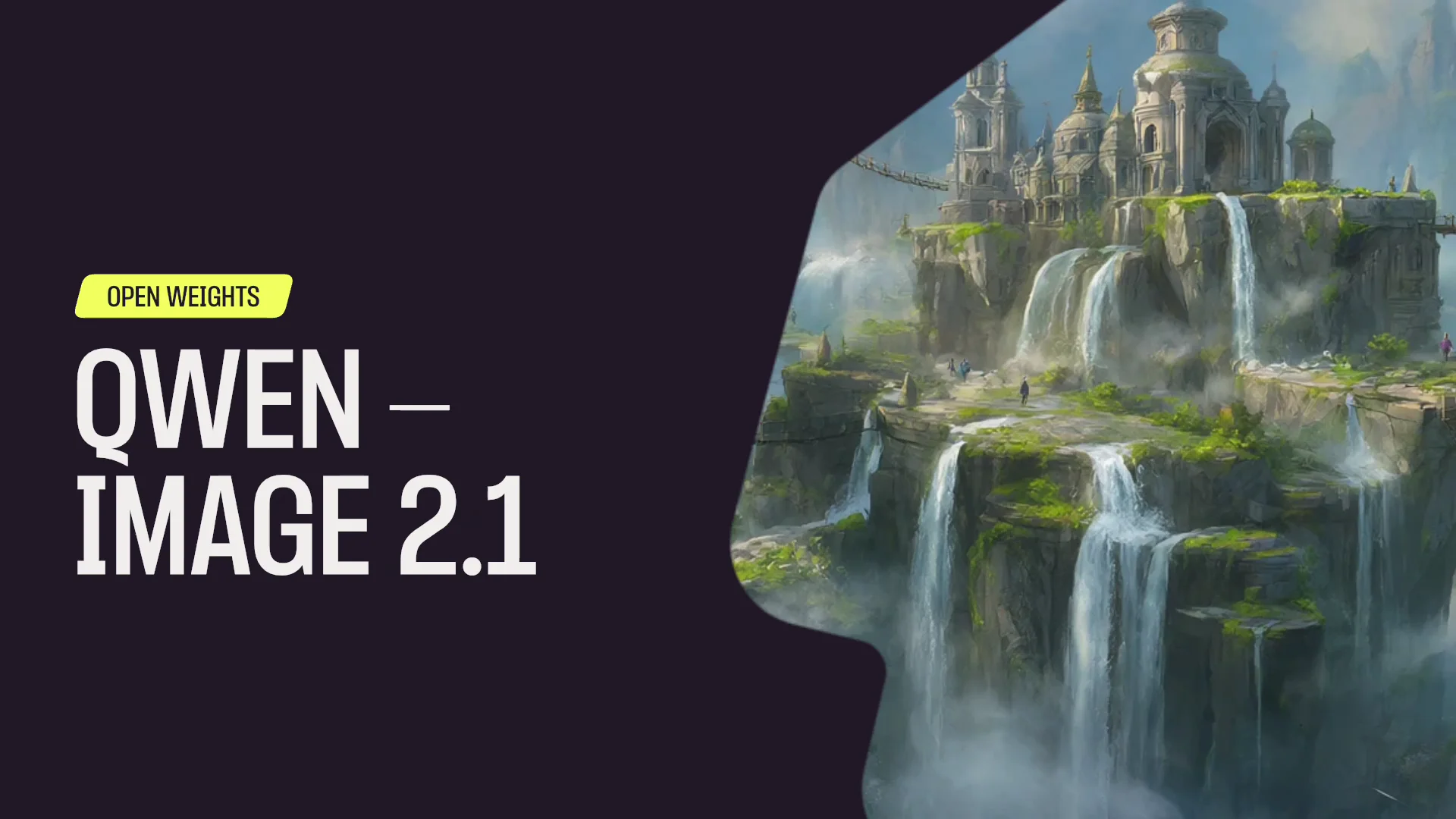
Qwen-Image-2.1 and Qwen Image ComfyUI: Open-Weight Image Generation with AI Image Editing Transparency
Qwen-Image-2.1 has become a reference point for creators who want serious image generation without giving up control. It sits at the intersection of open-weight image generation, local ComfyUI workflows, and practical AI image editing transparency. For developers and technical artists, the appeal is not just that the model can generate a striking image from a prompt. The real value is that you can inspect the pipeline, tune the sampler, swap the VAE, attach adapters, and decide exactly how alpha channels are produced. That level of control is rare in hosted tools, where convenience often comes at the cost of reproducibility and privacy.
This deep dive covers what Qwen-Image-2.1 brings to open-weight image generation, how to set up Qwen Image ComfyUI workflows, how transparency actually works in diffusion-based editing, and when a local pipeline is the wrong choice. The goal is not to hype the model. It is to give you enough technical context to decide whether it belongs in your production stack.
What Qwen-Image-2.1 Brings to Open-Weight Image Generation
Qwen-Image-2.1 matters because it pushes high-quality generation into a space where teams can run, modify, and version the model themselves. Open-weight image generation is not simply “free AI art.” It is a different operating model: you own the inference environment, you control the data path, and you can build custom tooling around the model instead of waiting for a vendor roadmap. For studios handling client assets, that control is often more valuable than raw speed.
The release also arrives at a moment when creators are increasingly skeptical of black-box generators. When a hosted service changes its moderation rules, pricing, or model version, your prompts and workflows can shift underneath you. Qwen-Image-2.1 gives teams a stable checkpoint they can archive, fine-tune, and reproduce months later. If you need a hosted option for quick exploration, a service like hosted AI image generator Imagine Pro can complement a local pipeline, but the open-weight model is where deep customization begins.
Inside the Qwen-Image-2.1 Architecture and Release Strategy
Qwen-Image-2.1 is best understood as a modern diffusion transformer pipeline rather than a single monolithic file. In practice, a working setup usually involves a text encoder, a diffusion transformer or U-Net-style denoiser, a VAE for latent encoding and decoding, and optional adapters such as ControlNet or LoRA. The exact component list depends on the checkpoint variant and the ComfyUI nodes you use, but the separation matters: it lets you replace the VAE, change the scheduler, or attach an editing adapter without retraining the entire model.
“Open-weight” means the model parameters are distributed in a form that allows local inference, inspection, and often fine-tuning. It does not automatically mean unrestricted commercial use. Licenses vary by release, and the model weights, inference code, and generated outputs may each carry different terms. Before deploying Qwen-Image-2.1 in commercial work, check the model card, the license attached to the checkpoint, and the terms of any custom nodes or auxiliary models you load.
Core Capabilities: Text-to-Image, Editing, and Transparency

Qwen-Image-2.1 is useful as both a generator and an editor. Text-to-image is the entry point: you write a prompt, choose a seed, set resolution, and sample. Editing is where the model becomes more interesting for production. With the right ComfyUI graph, you can inpaint masked regions, outpaint beyond the original frame, and preserve identity or style through conditioning adapters.
Transparency is the differentiator that many RGB-only models handle poorly. Some pipelines support native RGBA-style output or alpha prediction; others rely on a separate matting node, background removal model, or post-processing step. Qwen-Image-2.1’s open-weight nature means you can choose the approach that fits your compositing needs. That flexibility is important because clean AI image editing transparency is rarely solved by a single checkbox. Hair, glass, smoke, and motion blur require deliberate edge handling.
Open-Weight Advantages for Creators, Developers, and Studios

The strongest argument for local Qwen-Image-2.1 workflows is privacy. When you generate on your own GPU, prompts, reference images, and intermediate latents do not leave your machine unless you explicitly send them somewhere. For client work under NDA, that alone can justify the setup cost.
Customization is the second advantage. You can train a LoRA on a product line, build a node graph that outputs transparent PNGs with consistent margins, or automate batch generation from a CSV. Reproducibility is the third. If you save the seed, sampler, scheduler, model hash, and workflow JSON, you can recreate an output later. Cost control is the fourth, though it is often overstated. Local generation avoids per-image credits, but it shifts cost to hardware, electricity, maintenance, and engineering time. For low-volume users, a hosted service may still be cheaper.
How Qwen-Image-2.1 Differs from Hosted AI Image Generators
Hosted generators optimize for time-to-first-image. You type a prompt, wait a few seconds, and download a result. Qwen-Image-2.1 in ComfyUI optimizes for control. You decide the sampler, the CFG scale, the VAE precision, the attention slicing strategy, and the post-processing chain. You can also break the pipeline into stages, inspect latent previews, and debug exactly where an edge artifact appears.
That difference matters when the deliverable is not just an image but a repeatable asset pipeline. Hosted tools like Imagine Pro are excellent for rapid ideation, marketing concepts, and high-resolution art without local GPU requirements. Local Qwen-Image-2.1 workflows are better when you need fine-tuning, transparent layer outputs, or strict data governance.
Setting Up Qwen Image ComfyUI Workflows

A reliable Qwen Image ComfyUI setup starts with realistic hardware expectations. You do not need a data-center GPU, but you do need enough VRAM to load the model, the text encoder, the VAE, and any adapters. If you are searching for “Qwen Image ComfyUI,” the goal is a repeatable installation that survives model updates and node changes.
ComfyUI Prerequisites for Qwen-Image-2.1
For comfortable 1024×1024 generation, a modern NVIDIA GPU with 12–16 GB VRAM is a practical starting point. Larger resolutions, batch sizes, and ControlNet stacks push requirements higher. With 8 GB VRAM, expect to use FP8 or GGUF quantized checkpoints, tiled VAE decoding, and aggressive model offloading. CPU-only inference is possible in theory but impractical for iterative work.
On the software side, use a Python environment dedicated to ComfyUI. Python 3.10 or 3.11 is usually safest because many custom nodes lag behind the newest Python releases. Keep PyTorch, torchvision, and xformers or Flash Attention aligned with your CUDA version. A clean virtual environment prevents the dependency conflicts that plague mixed AI tooling.
Installing Model Weights, Custom Nodes, and Dependencies
Place model weights in the ComfyUI folders that match their type: diffusion models in models/diffusion_models or models/checkpoints, text encoders in models/text_encoders, VAEs in models/vae, and LoRAs in models/loras. Custom nodes belong in custom_nodes. After installing nodes, restart ComfyUI and watch the console for import errors. Missing dependencies usually appear as Python tracebacks naming a specific package.
A common mistake is installing custom nodes before checking their compatibility with your ComfyUI version. Node packs that depend on internal APIs can break after a core update. Pin your ComfyUI version for production workflows, or test updates in a separate environment. To verify a clean install, load a minimal workflow, confirm the model appears in the loader dropdown, and generate a low-resolution test image.
Configuring Samplers, Schedulers, and VRAM Settings
Start with a conservative sampler and scheduler combination, then tune. Many Qwen-Image-2.1 workflows respond well to DPM++ 2M, Euler a, or a model-recommended sampler. CFG scale often sits between 4 and 7 for prompt adherence without oversaturation. Steps between 20 and 30 are a reasonable baseline; higher step counts rarely fix a bad prompt or a mismatched VAE.
For low-VRAM systems, enable model offloading, use tiled VAE decode, and reduce batch size to 1. FP8 precision can cut memory use substantially with minor quality trade-offs. If you have more VRAM, BF16 or FP16 may produce cleaner results. Attention slicing helps with high resolutions but slows generation. The right balance depends on whether you are iterating or producing final assets.
Running Your First Qwen Image ComfyUI Generation
A minimal Qwen Image ComfyUI graph includes a checkpoint loader, a text encoder or CLIP text encode node, an empty latent image node, a sampler node, a VAE decode node, and a save image node. You set the prompt, seed, resolution, sampler, scheduler, steps, and CFG. The seed is the most important reproducibility lever. Save the workflow JSON before you start experimenting.
Load Checkpoint -> CLIP Text Encode (Positive) -> KSampler -> VAE Decode -> Save Image
                 -> CLIP Text Encode (Negative) ->
Once the first image renders, change one variable at a time. Adjust the prompt, then the seed, then the sampler. If you change everything at once, you learn nothing about what caused the improvement.
Open-Weight Image Generation in Practice: Prompting, Control, and Reproducibility
Moving from setup to real usage means treating Qwen-Image-2.1 as a system, not a slot machine. Open-weight image generation rewards structured prompting, adapter discipline, and version control.
Prompt Engineering for Qwen-Image-2.1
A useful prompt structure is subject, composition, lighting, style, and technical constraints. For example: “A matte ceramic coffee cup on a walnut table, three-quarter view, soft window light from the left, minimal product photography, sharp focus on the rim, transparent background.” Negative prompts can suppress common artifacts such as text, extra fingers, or harsh halos, but overloading them can flatten the image.
Qwen-Image-2.1 may respond differently than hosted models because you control the text encoder and CFG. Hosted services often apply hidden prompt rewriting. Local generation does not. If a prompt feels ignored, lower the CFG, simplify the sentence structure, or separate style tokens from subject tokens.
Using ControlNet, LoRA, and IP-Adapter with Qwen Image ComfyUI
ControlNet layers let you guide composition with depth, canny, pose, or scribble maps. LoRA adapters adjust style or subject identity. IP-Adapter can pull visual references into the generation process. In Qwen Image ComfyUI, these tools stack, but compatibility is not guaranteed. A ControlNet trained for a different architecture may load without error and still produce nonsense. Always test each adapter in isolation before chaining them.
For consistency across batches, lock the LoRA weight, seed, and ControlNet strength. Small changes in adapter weight can shift the entire output. Keep a reference image and compare embeddings or perceptual hashes if you need strict continuity.
Batch Processing, Seed Management, and Workflow JSON
Batch processing is where ComfyUI becomes a production tool. You can queue multiple prompts, vary seeds, and save outputs with structured filenames. Use a seed increment strategy rather than random seeds when you need to explore variations. For final delivery, record the seed, model hash, sampler, scheduler, steps, CFG, resolution, and adapter weights.
Workflow JSON is your version-control artifact. Treat it like source code. Store it in Git, tag it with the model version, and document any custom node revisions. If a node pack updates and breaks the graph, you can roll back.
Real-World Example: Product Mockups and Transparent Assets
A practical workflow for product mockups starts with a text-to-image generation at 1024×1024. Next, use a segmentation or matting node to isolate the product. Refine the mask with grow, blur, and threshold nodes. Inpaint the background if edges are dirty, then composite the RGBA output onto a neutral studio backdrop. Finally, save both the transparent PNG and a flattened preview.
For teams that need high-resolution art in seconds without managing node graphs, Imagine Pro can handle the hosted generation step while the local pipeline handles final compositing. The key is to match the tool to the stage: fast ideation hosted, precise transparency locally.
AI Image Editing Transparency: Alpha Channels, Masks, and Layer Outputs
AI image editing transparency is not a cosmetic feature. It determines whether an asset can be composited cleanly over any background. A PNG with a fake checkerboard is not transparency. A real alpha channel stores per-pixel opacity, and the RGB values must be handled correctly at the edges.
Why Transparency Matters for Compositing and Design
Alpha channels let you layer an object over video, UI, print, or 3D renders without a white box around it. Matte outputs are especially important for hair, fur, glass, and smoke, where opacity varies continuously. Diffusion models struggle here because they generate RGB pixels, not physical transparency. They may produce a plausible-looking edge that falls apart when placed on a dark background.
Premultiplied alpha is a common source of edge artifacts. In straight alpha, RGB and alpha are stored separately. In premultiplied alpha, RGB has already been multiplied by alpha. If you composite premultiplied data as if it were straight, edges become dark or bright halos.
How Qwen-Image-2.1 Produces Alpha Channels and Matte Outputs
Qwen-Image-2.1 can participate in transparency workflows in two ways. If the checkpoint or pipeline supports RGBA or alpha prediction, the model can output an alpha channel directly. More commonly, ComfyUI workflows generate an RGB image and then use a matting node, segmentation model, or chroma-key step to create the alpha. The final image is saved as RGBA.
Neither approach is perfect. Native alpha prediction can be inconsistent on complex edges. Post-processed matting can be cleaner but depends heavily on mask quality. The advantage of Qwen-Image-2.1 is that you can inspect and swap each stage.
Inpainting, Outpainting, and Background Removal in ComfyUI
Inpainting preserves transparency by letting you edit only the masked region. If you are removing a background, create a mask around the subject, invert it, and inpaint the background with a neutral color or transparency-friendly fill. Outpainting extends the canvas, but it can introduce edge mismatches if the mask overlaps the alpha boundary.
Mask handling is critical. A hard mask produces jagged edges. A soft mask can create halos. Use grow and blur nodes sparingly, then refine with a threshold. For background removal, keep the original alpha and composite the inpainted result back through the same mask.
Fixing Edge Artifacts in Transparent AI Image Editing
Halos usually come from a mismatch between the RGB edge and the alpha edge. Fringing happens when the model blends the subject with a colored background. Hair and glass are the hardest cases because they require partial opacity. Practical fixes include shrinking the matte by one or two pixels, applying a slight edge blur, and using a background color that matches the final composite.
For glass, do not expect a binary mask to work. You need a grayscale matte that preserves translucency. For motion blur, the alpha should blur with the RGB. If only the alpha is sharp, the composite will look pasted.
Technical Deep Dive: How Qwen-Image-2.1 Handles Editing and Transparency Under the Hood
Diffusion Transformer Conditioning and Latent-Space Editing
Qwen-Image-2.1 likely uses a diffusion transformer backbone that denoises in a latent space. Conditioning signals from text, masks, ControlNet, and adapters are injected at different layers or through cross-attention. Latent-space editing is faster than pixel-space editing because the model works at a compressed resolution. However, fine transparency details may be lost in the latent compression, which is why high-resolution VAE decoding and edge refinement matter.
Alpha Prediction, Compositing Math, and Premultiplied Edges
Alpha prediction can be framed as a separate regression task: predict per-pixel opacity from the RGB features. The compositing math is:
result = foreground * alpha + background * (1 - alpha)
If foreground is premultiplied, the equation changes. Mixing conventions creates halos. Always verify whether your matting node outputs straight or premultiplied alpha before compositing.
Memory Optimizations for High-Resolution Transparent Outputs
High-resolution RGBA output multiplies memory pressure because you are storing four channels plus intermediate masks. Tiled VAE decode processes the image in overlapping tiles, which reduces VRAM but can introduce seams. Attention slicing lowers peak memory at the cost of speed. FP8 and GGUF quantization help on consumer GPUs, but they can soften fine edges. Test at your target resolution, not just at 512×512.
Node Graph Internals: What Each ComfyUI Node Actually Does
A transparency pipeline typically includes a checkpoint loader, prompt encoders, a sampler, a VAE decode, a segmentation or matting node, mask refinement nodes, an optional inpaint node, an alpha composite node, and a save node. The matting node creates the alpha. The refinement nodes clean it. The composite node applies the alpha to RGB. The save node writes RGBA PNG. If any node outputs the wrong color space or alpha convention, the final edge will suffer.
Performance Benchmarks, Quality Comparisons, and Trust Signals
Benchmarks for Qwen-Image-2.1 are workflow-dependent. A 1024×1024 image at 25 steps on a 16 GB GPU may take 8–20 seconds, while a 2048×2048 image with ControlNet and tiled VAE may take several minutes. VRAM use scales with resolution, batch size, precision, and adapter count. Measure your own pipeline rather than trusting generic numbers.
Transparency Quality: Hair, Glass, Shadows, and Motion Blur
Alpha mattes usually succeed on solid objects with clean edges. They struggle with hair, glass, smoke, and motion blur. Shadows are another failure case: a soft shadow is partially transparent, but many matting models treat it as background. Expect to refine these cases manually or with specialized matting nodes.
Comparison with Stable Diffusion, Flux, and Hosted Models
Stable Diffusion and Flux have broad ecosystem support, but Qwen-Image-2.1 may offer stronger text rendering or editing behavior depending on the checkpoint. Hosted models are faster to start and easier to scale, but they limit transparency control. The right choice depends on whether you value convenience or pipeline ownership.
Licensing, Reproducibility, and Community Validation
Check the Qwen-Image-2.1 license before commercial use. Some open-weight models allow commercial generation but restrict fine-tuning or redistribution. Community benchmarks and issue trackers are useful, but validate them against your own prompts. Reproducibility requires model hashes, node versions, and seed logs.
Imagine Pro vs Qwen-Image-2.1: Choosing the Right Workflow
Hosted Convenience vs Local Control
Imagine Pro is a hosted AI image generator built for speed and simplicity. Qwen-Image-2.1 in ComfyUI is a local system built for control. Hosted tools remove setup friction. Local tools remove vendor dependency.
Cost, Privacy, and Customization Trade-Offs
Hosted services use subscriptions or credits. Local generation uses hardware and engineering time. Privacy favors local. Customization favors local. Time-to-first-image favors hosted.
When Qwen-Image-2.1 in ComfyUI Is the Better Choice
Choose Qwen-Image-2.1 when you need fine-tuning, transparent layer outputs, exact reproducibility, or strict data governance.
When Imagine Pro Is the Better Choice for Fast, High-Resolution Results
Choose Imagine Pro when you need rapid ideation, high-resolution art, or a free trial without managing GPUs and node graphs. It is also a sensible fallback for teams without ML engineering resources.
Advanced Techniques and Production Lessons for Open-Weight Editing
Fine-Tuning LoRAs for Brand-Specific Transparent Assets
LoRAs can teach Qwen-Image-2.1 a product shape, character, or visual style. Train on clean, consistent images with transparent or neutral backgrounds. Test the LoRA at multiple strengths before using it in production.
Chaining Nodes for Multi-Stage Editing Pipelines
Production graphs often chain generation, matting, refinement, inpainting, and upscaling. Keep each stage modular so you can replace the matting model without rebuilding the entire graph.
Common Pitfalls: VRAM Overflow, Bad Masks, and Node Version Mismatches
VRAM overflow usually comes from high resolution, large batch size, or too many adapters. Bad masks cause halos and fringing. Node version mismatches cause import errors or silent failures. Pin versions and test updates.
Lessons from Production: Reproducibility, Versioning, and Fallbacks
Log seeds, model hashes, and workflow JSON. Version everything. Have a hosted fallback such as Imagine Pro for urgent jobs when local infrastructure is unavailable.
Best Practices for Open-Weight Image Generation with Qwen-Image-2.1
Organizing ComfyUI Workflows and Presets
Use folders for models, workflows, and outputs. Name presets by model version and purpose.
Managing Prompts, Seeds, and Model Versions
Keep a prompt log and seed registry. Treat model versions like dependencies.
Licensing and Attribution for Commercial Transparency Work
Verify model, code, and output licenses separately.
Safety, Moderation, and Ethical Use of AI Image Editing
Get consent for real people, disclose edits, and avoid deceptive deepfakes.
When Not to Use Qwen Image ComfyUI for Local Image Generation
Limited Hardware or No Local GPU
If you lack a capable GPU, hosted tools are more practical.
Need for Guaranteed Uptime and Support
Local setups do not provide enterprise SLAs.
Real-Time Editing or Very Large Batch Jobs
Hosted infrastructure scales better for massive throughput.
Teams Without ML Engineering Resources
Use Imagine Pro when you want results without node graphs or model management.
Future Outlook: Open-Weight Image Generation and AI Image Editing Transparency
Qwen-Image-2.1 points toward a future where open-weight image generation and AI image editing transparency are not separate specialties. As matting, alpha prediction, and adapters improve, local pipelines will produce cleaner compositing assets with less manual cleanup. Hosted tools will continue to win on speed and accessibility, while open-weight models will win on control. The smartest teams will use both: hosted generation for exploration, local Qwen Image ComfyUI workflows for production transparency, and a documented fallback when hardware or time runs out.
Compare Plans & Pricing
Find the plan that matches your workload and unlock full access to ImaginePro.
| Plan | Price | Highlights |
|---|---|---|
| Standard | $8 / month |
|
| Premium | $20 / month |
|
Need custom terms? Talk to us to tailor credits, rate limits, or deployment options.
View All Pricing Details